 EN
EN BR
BR DE
DE ES
ES FR
FR RU
RU ID
ID TR
TR IT
IT JP
JP SA
SA VN
VN TH
TH KR
KR
How to Turn Off a VPN: iPhone, Android, Mac, and More (And When You Actually Should)

 Key takeaways
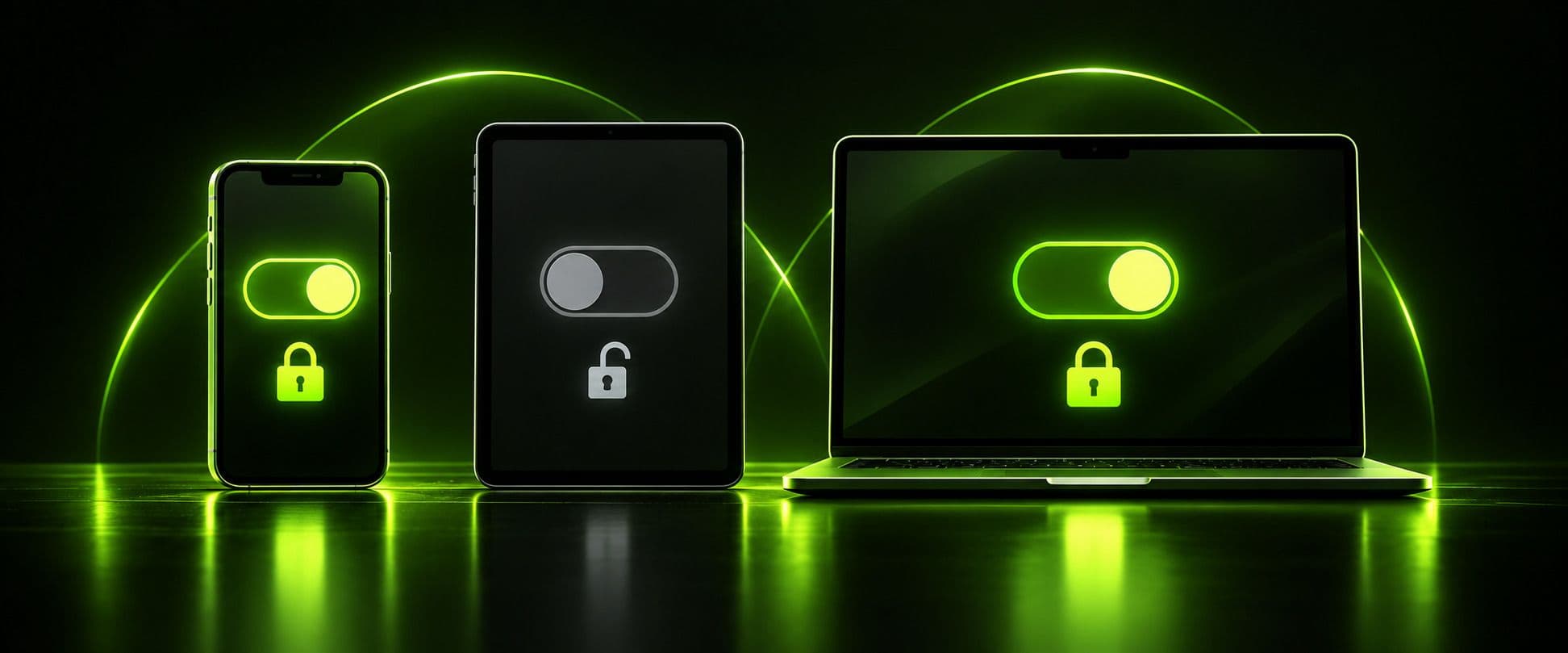
- Turning off a VPN is a normal, everyday action — every operating system has a built-in toggle for it, and you don't need the VPN app itself open to do it.
- "Turning off" (disconnecting) and "disabling" (removing the VPN configuration entirely) are two different things — one is temporary, the other isn't.
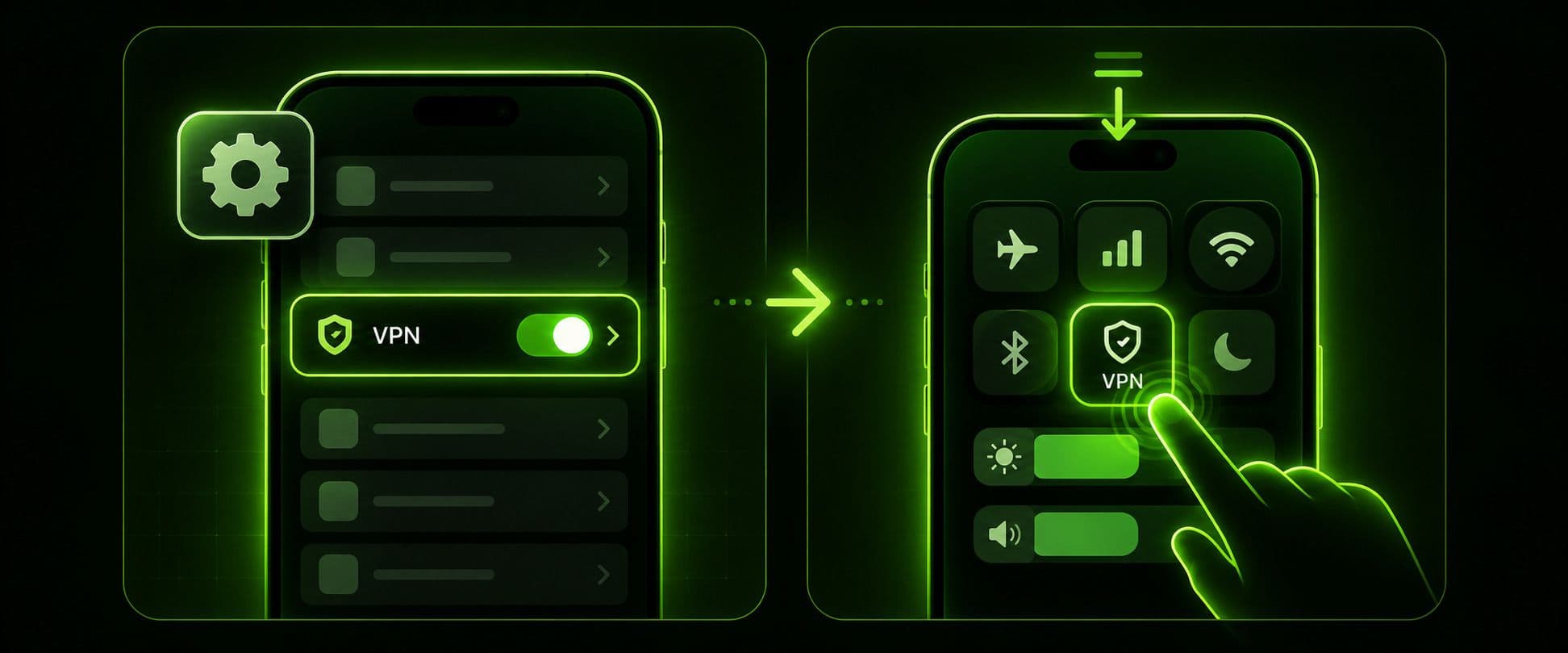
- iPhone and iPad both hide the VPN toggle in Settings, but Control Center offers a faster shortcut that most guides skip.
- Public Wi-Fi, banking, and unfamiliar networks are the clearest cases where your VPN should stay on; local network access, initial device setup, and a handful of location-locked apps are the clearest cases where turning it off has little real downside.
- If a VPN won't disconnect on iPhone, the culprit is almost always a setting called Always-On VPN or a supervised/managed-device profile, not a broken app.
A VPN is supposed to run quietly in the background, but every so often it gets in the way — a banking app throws an error, a smart TV won't cast, or a website insists you're "in the wrong region" even though you aren't. When that happens, knowing exactly how to turn off vpn access on whatever device you're holding, and whether doing so is actually a smart move, matters more than it might seem.
This guide walks through how to disable vpn connections on iPhone, iPad, Android, Mac, and Windows, plus a full breakdown of when leaving your VPN off is genuinely fine and when it puts you at real risk.
The Quick Way: How to Turn Off VPN From the App
If you're using a VPN app rather than your device's built-in VPN client, the fastest way to disconnect is almost always inside that app itself: open it and look for a Connect/Disconnect switch, a Stop button, or a power icon on the main screen, then tap it. This is usually how to turn off vpn in a single tap, regardless of which provider's app you're using, since nearly all VPN apps put a large, obvious connection toggle front and center. This is also how to disable vpn temporarily whenever you just need a minute without it, rather than removing anything permanently — the app remembers your settings and reconnects instantly the next time you tap it.
That said, an app-level toggle isn't the only way to turn off vpn, and it isn't always available — some people use their operating system's built-in VPN client instead of a dedicated app, and some situations (a frozen app, a device restriction, or wanting to confirm the connection is really gone) call for going straight to your device's own settings. The sections below cover exactly how to do that on every major platform.
Some people search how to turn vpn off rather than "turn off vpn," and others look for how to turn off a vpn for just a few minutes versus permanently — all of these point to the same underlying action, just phrased differently, and the steps that follow apply no matter how you typed the question. If your search was closer to how do i turn off my vpn specifically, rather than a general "how to" guide, the answer is exactly the same: the toggle lives in the app you're using, or in your device's own settings if you'd rather go straight there.
How Do I Turn Off VPN on My Phone? (iPhone and Android)
Phones are where most people actually toggle their VPN, since that's where public Wi-Fi, mobile data switching, and app-specific quirks come up most often. The steps differ slightly by operating system, so here's each one in detail.
How to Turn Off VPN on iPhone
If you're asking what is vpn on iphone how to turn off, here's the short version before the full steps: iOS treats a VPN as a special kind of network connection, so it lives in Settings alongside Wi-Fi and Cellular, not inside a single dedicated "VPN app" screen the way some people expect.
To turn off vpn on iphone using Settings:
- Open the Settings app.
- Tap General, then tap VPN & Device Management.
- Under the VPN section, tap the connection that's currently active.
- Tap the small circled "i" beside the connection name, then use the toggle to switch it off — or tap Disconnect if that's the option shown for your particular VPN profile.
There's also a faster route for how to turn vpn off on iphone that doesn't require opening Settings at all: swipe down from the top-right corner to open Control Center, and if your VPN is set up to appear there, tap the VPN icon to toggle it off directly. Not every VPN configuration exposes a Control Center toggle, so if you don't see one, the Settings method above always works.
If you searched how to disable vpn on iphone specifically expecting a different process from "turn off," there isn't one — iOS uses the two terms interchangeably, and disable vpn on iphone and turn off vpn on iphone both land you on the exact same toggle. Some readers search how to turn off vpn iphone without the word "on" at all, while others type turn off vpn iphone as a plain shorthand — both describe this same Settings toggle, and so does the reversed phrasing vpn for iphone turn off, which some people use when they're comparing the iPhone process to Android's.
VPN Won't Turn Off iPhone? Here's What to Check
If vpn won't turn off iphone no matter how many times you tap the toggle, the issue is almost never the VPN app itself. Check these two things first:
- Always-On VPN. Some VPN configurations — often ones installed via a work or school profile — include an Always-On VPN setting that automatically reconnects the moment you disconnect. Go to Settings > General > VPN & Device Management, tap the connection, and look for an Always-On or "Connect on Demand" toggle to turn off before trying to disconnect again.
- A supervised or managed device. If your iPhone was set up through a company or school's device management system, the VPN may be enforced at the configuration-profile level, meaning it genuinely can't be turned off from Settings at all. In that case, the restriction is intentional and would need to be lifted by whoever manages the device.
For most personal iPhones with a VPN app installed independently, though, a stuck connection is usually solved by force-closing the app once and then disconnecting from Settings directly, which bypasses whatever the app's own interface was doing.
How to Turn Off VPN on iPad
The process for how to turn off vpn on ipad is nearly identical to iPhone — Settings > General > VPN & Device Management > select the connection > toggle off — but there's one small difference worth knowing: Control Center's layout on iPad depends on which corner you swipe from and whether you're using Split View or Slide Over with another app open. If a Control Center VPN shortcut doesn't appear where you expect it, swiping down from the top-right corner of the screen (rather than the top edge generally) is the more reliable gesture on most iPad models, and the Settings method above will work regardless of which app is open alongside it.
How to Turn Off VPN on Android
Android's VPN settings live in a similar place across most phones, though the exact wording shifts by manufacturer.
For how to turn off vpn on android on a stock or near-stock device (Pixel and similar):
- Open Settings.
- Tap Network & internet, then tap VPN.
- Tap the gear icon next to the active connection, or tap the connection name directly.
- Tap Disconnect, or toggle the switch off.
Some people phrase this as how to turn vpn off on android rather than "turn off," and it's the exact same menu path either way. This is also how to disable vpn on android if you'd rather use that wording — Android doesn't distinguish between the two terms any more than iOS does.
If your phone is a Samsung device, the menu is nested slightly differently: open Settings, tap Connections, tap More connection settings, tap VPN, then tap the connection name and choose Disconnect.
One Android-specific setting worth checking if a connection won't stay off: look for Always-on VPN or Block connections without VPN near the VPN settings screen. If either is switched on, Android will automatically reconnect shortly after you disconnect, which can look like the toggle isn't working when it actually is.
How to Turn Off VPN on Computer
Desktop and laptop computers handle VPN connections at the operating-system level too, separate from whatever VPN app you might have running.
How to Turn Off VPN on Mac
To disconnect a VPN on a Mac through system settings rather than an app:
- Click the Apple menu, then choose System Settings.
- Click Network in the sidebar.
- Select your VPN connection from the list.
- Click Disconnect.
If you'd rather remove the configuration completely instead of just disconnecting, click the small info button beside the VPN entry and choose Remove Configuration, then confirm.
How to Turn Off VPN on Windows
The process for how to turn off vpn on computer running Windows uses a similar built-in network panel:
- Click the Start menu and open Settings.
- Go to Network & internet, then click VPN.
- Select your VPN connection.
- Click Disconnect.
Most consumer VPN apps for Windows also keep their own always-visible Connect/Disconnect toggle running in the system tray, which works just as well and doesn't require opening Windows' own network settings at all — either method disconnects the same underlying connection.
Should Your VPN Be On or Off?
Knowing how to turn a VPN off is the easy part. The harder question — and the one worth spending real time on — is should vpn be on or off in the first place. The honest answer depends entirely on what network you're on and what you're doing, not on a single universal rule.
When Your VPN Should Stay On
A few situations come up often enough that they're worth calling out directly:
- Public or unfamiliar Wi-Fi. Coffee shops, airports, hotels, and any network you don't control are the single clearest case for keeping a VPN active. Without it, your traffic on a shared network can potentially be intercepted by anyone else connected to it.
- Online banking and financial apps. Even at home, banking sessions are a reasonable case to keep your VPN running, since it keeps that traffic encrypted end to end rather than relying entirely on the bank's own security.
- Traveling somewhere with heavy content or speech restrictions. If you're in a country with significant internet censorship, disconnecting removes the one layer standing between you and whatever's being filtered.
- Torrenting or P2P file sharing. A VPN masks your IP address from other peers on the same swarm, which matters regardless of what's actually being shared.
- General home browsing, if privacy from your own ISP matters to you. Without a VPN, your internet provider can see which sites and services you're connecting to, even if it can't see the specific content on encrypted (HTTPS) pages.
When Turning It Off Has Little Real Downside
Not every situation calls for the same caution. A handful of cases genuinely don't carry much risk either way:
- Connecting to devices on your own home network. Printers, smart-home hubs, network-attached storage, and casting to a TV (Chromecast, AirPlay, or similar) all expect your device to be on the same local network. A VPN can interfere with this kind of local discovery, so briefly disconnecting — or using split tunneling if your VPN app supports it, which routes only some traffic through the VPN while the rest reaches your local network directly — solves it without leaving anything else exposed.
- Setting up a new device for the first time. Initial Wi-Fi pairing and account setup for smart-home gadgets sometimes fails with a VPN active, since the setup process expects to talk directly to your router.
- Using an app that's genuinely local-only. A city transit app, a local utility provider's app, or a regional government portal built to expect your real location generally has no reason to be accessed through a VPN, and blocking that traffic doesn't protect anything meaningful.
- Running a one-off speed test to check your baseline connection. Since encryption adds a small amount of overhead, briefly disconnecting gives you a cleaner read on your actual line speed before reconnecting.
Should VPN Be On or Off on iPhone?
The same reasoning applies on mobile as on desktop — should vpn be on or off on iphone comes down to the network you're connected to, not the device itself. Cellular data is generally already encrypted between your phone and the carrier, but that doesn't extend to what the carrier or apps you use can see, so many of the same public-Wi-Fi and privacy considerations above still apply on a cellular connection.
If you're asking should my vpn be on or off right now, a quick gut-check works for most situations: are you on a network you don't own or fully trust, or doing something sensitive like banking? Leave it on. Are you just trying to reach a printer, cast to a TV, or use a local-only app? It's fine to pause it briefly.
What Happens When You Turn Off Your VPN
It helps to know exactly what changes the moment a VPN disconnects, since it isn't always obvious:
- Your device's real IP address becomes visible to every site and service you connect to, rather than the VPN server's IP address.
- Your internet service provider can see which domains and services you're reaching, even though it typically can't see the contents of encrypted (HTTPS) pages.
- On public or shared networks specifically, your traffic is no longer wrapped in an additional layer of encryption, so anyone else with access to that same network has a better chance of intercepting unencrypted traffic.
- You lose access to whatever region-specific content, pricing, or service availability the VPN was letting you reach.
- If you forget to reconnect, all of the above continues silently until you do — which is the single most common way people end up briefly exposed without realizing it.
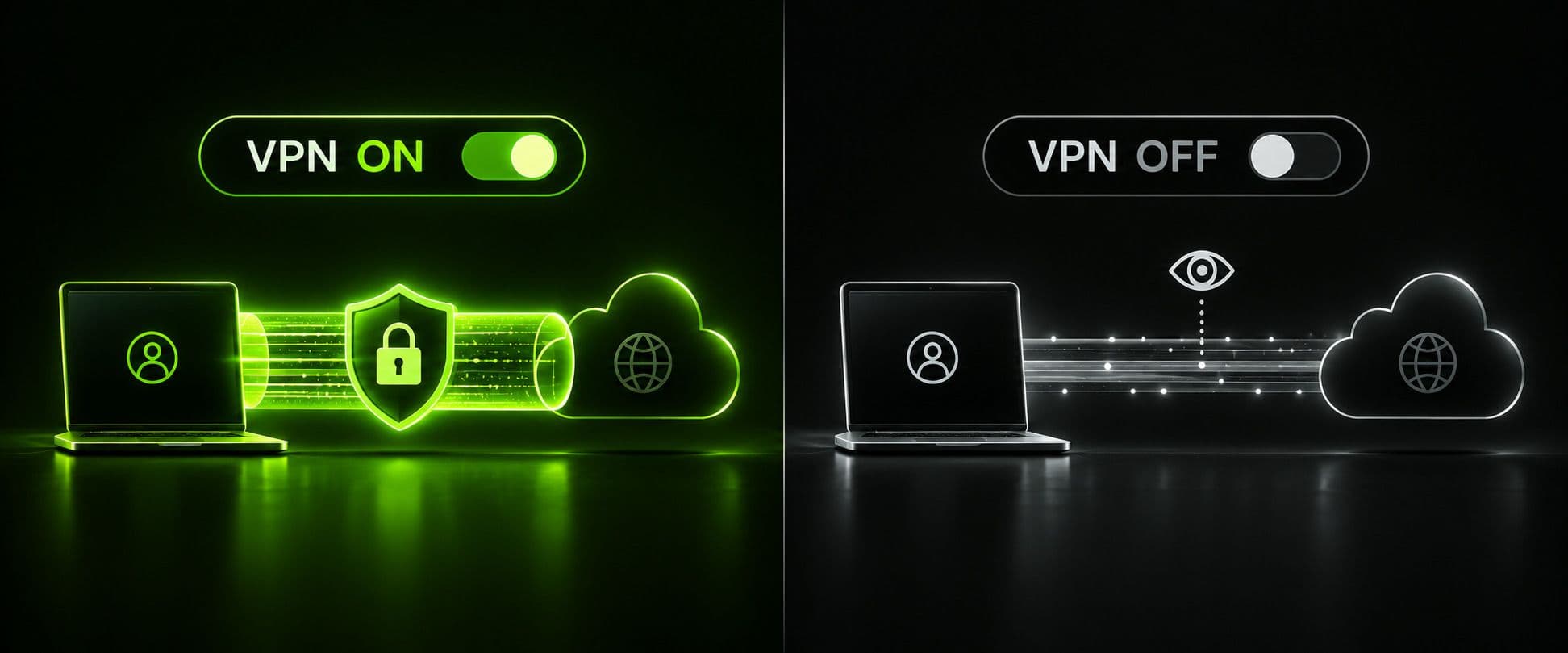
A VPN with a reliable kill switch, like Guru VPN, helps with that last point specifically: if the VPN connection drops unexpectedly rather than being turned off on purpose, a kill switch blocks regular internet traffic until the connection is restored, instead of quietly falling back to your unprotected connection. Guru VPN also encrypts every connection with strong, modern encryption standards across its full server network, so when you do decide to leave it on, you're not trading away speed for that protection.
Why Choose Guru VPN
None of the steps above are specific to any one VPN provider — every VPN, including Guru VPN, ultimately relies on your device's own operating system to make and break that connection, which is why the Settings-based instructions above work no matter which app you're running. What does vary between providers is what happens while the connection is active: how strong the encryption is, how many servers are available, and how well the app handles reconnecting after a dropped connection.
Guru VPN focuses on exactly that part of the experience — fast, encrypted connections across a wide global server network, so that keeping your VPN on doesn't come with a noticeable speed tradeoff. You can compare available plans on the Guru VPN pricing page and see the current server list at guruvpn.com/servers before deciding which plan fits how often you expect to leave your VPN running.
FAQ
Open your VPN app and tap its Connect/Disconnect toggle, or go to your device's built-in VPN settings — Settings > General > VPN & Device Management on iPhone and iPad, Settings > Network & internet > VPN on Android and Windows, or System Settings > Network on a Mac — and select Disconnect.
Go to Settings > General > VPN & Device Management, tap the active connection, tap the "i" icon, and toggle it off — or use the VPN shortcut in Control Center if one is set up.
No. A well-optimized VPN like Guru VPN is designed to run continuously without a meaningful impact on speed or battery life, and leaving it on removes the risk of forgetting to turn it back on in a situation where you actually need it.
The most common causes are an Always-On VPN or Connect-on-Demand setting, or a managed/supervised device profile enforcing the connection. Check those settings before assuming the app itself is broken.
Sometimes marginally, since encryption adds a small amount of processing overhead, but on a fast VPN with good server infrastructure the difference is usually small enough that it isn't worth trading away the protection for it.
Generally no — most banks don't block VPN traffic outright, though a small number may flag an unfamiliar server location and ask for extra verification. If a specific banking app repeatedly has trouble, connecting to a server in your own country first is usually enough, without needing to disconnect entirely.
Turning off (disconnecting) is temporary — your settings and saved connection stay in place, and reconnecting takes one tap. Disabling, in the sense of deleting the VPN configuration or uninstalling the app entirely, is closer to a permanent reset and means setting the connection up again from scratch.
Conclusion
Turning off a VPN is never more than a few taps away on any device — the real skill is knowing when that's actually a good idea. Keep it running on public Wi-Fi, while banking, while traveling somewhere with real content restrictions, and by default at home if privacy from your own provider matters to you; feel free to pause it briefly for local network tasks, first-time device setup, or the occasional speed test. With a fast, reliable connection like Guru VPN, staying protected by default costs so little in speed or convenience that "off" rarely needs to be the answer at all.