 EN
EN BR
BR DE
DE ES
ES FR
FR RU
RU ID
ID TR
TR IT
IT JP
JP SA
SA VN
VN TH
TH KR
KR
VPN Not Connecting? 10 Fixes That Actually Work

 Key takeaways
- Learn the most common reasons why a VPN won't connect.
- Follow 10 practical troubleshooting steps that resolve most connection issues.
- Discover platform-specific solutions for Windows, macOS, Android, and iPhone.
- Find out how to prevent future VPN connection problems with a few simple best practices.
- See how Guru VPN delivers fast, secure, and reliable VPN connections for everyday browsing.
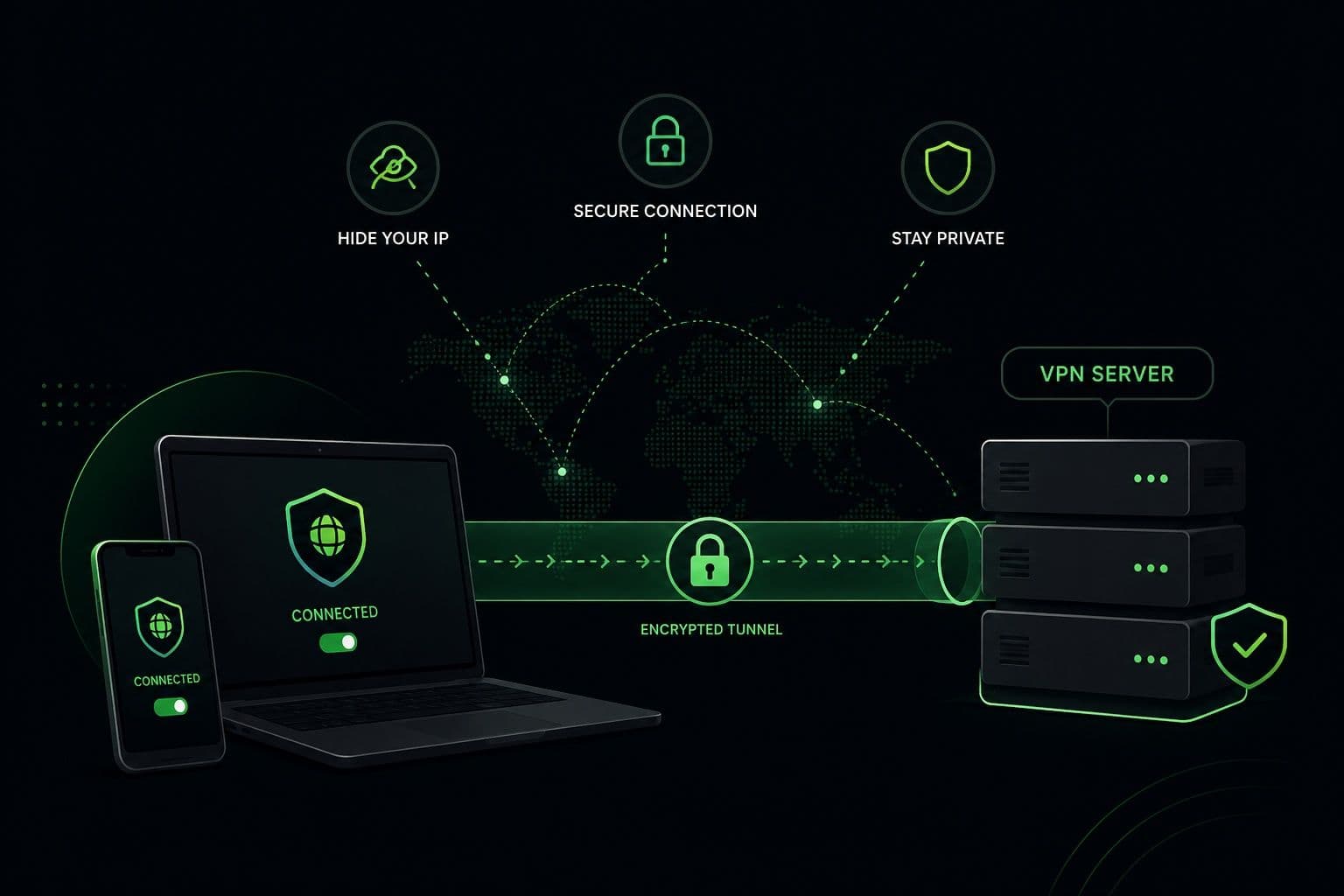
If you're facing a vpn not connecting issue, you're not alone. VPN connection problems are surprisingly common, but the good news is that most of them can be resolved in just a few minutes without advanced technical knowledge. Whether the problem is caused by your internet connection, an outdated app, or a busy server, there are several simple troubleshooting steps that can quickly restore your secure connection.
Today, protecting your online privacy is more important than ever. From remote work and online banking to streaming and browsing on public Wi-Fi, your internet traffic can be exposed to unnecessary risks if it isn't properly secured. A VPN helps solve this problem by encrypting your connection, masking your IP address, and keeping your online activity private.
Occasionally, however, even a trusted VPN may fail to connect. A vpn connection not working doesn't necessarily indicate a serious problem with the service itself. In many cases, the issue can be fixed by changing a setting, updating the application, or connecting to another server.
In this guide, you'll learn the most common reasons why a VPN fails to connect and discover 10 proven solutions that actually work. We'll also explain how to troubleshoot connection issues on Windows, macOS, iPhone, and Android, share tips for preventing future problems, and show how Guru VPN helps users enjoy stable, secure, and reliable connections. If you'd like to learn more about the service, visit Guru VPN site.
Key Takeaways
- Learn the most common reasons why a VPN won't connect.
- Follow 10 practical troubleshooting steps that resolve most connection issues.
- Discover platform-specific solutions for Windows, macOS, Android, and iPhone.
- Find out how to prevent future VPN connection problems with a few simple best practices.
- See how Guru VPN delivers fast, secure, and reliable VPN connections for everyday browsing.
Why Is Your VPN Not Connecting?
A VPN may stop connecting for a variety of reasons, but most issues can be identified with a few basic checks. Before trying more advanced troubleshooting, it's helpful to understand what is preventing the connection in the first place. In many cases, the solution is simpler than it appears.
Common Causes of VPN Connection Problems
One of the most frequent causes is a poor or unstable internet connection. If your device cannot reliably access the internet, the VPN won't be able to establish a secure tunnel.
Incorrect login credentials can also prevent a successful connection. An expired subscription, an incorrect password, or an account verification issue may stop the VPN from authenticating your session.
Sometimes the problem isn't on your device at all. VPN servers can become temporarily overloaded or unavailable due to maintenance. Switching to another location is often enough to resolve the issue. If you're using Guru VPN, you can choose from a wide range of global locations on the server network.
Security software may also interfere with VPN traffic. Some firewall or antivirus programs mistakenly block VPN connections, especially after a software update or changes to network settings.
Finally, an outdated VPN application can lead to compatibility issues with your operating system or network. Installing the latest version ensures you benefit from recent performance improvements, bug fixes, and security updates.
How to Identify the Root Cause
Before looking for a vpn not connecting fix, start with a few simple checks.
First, confirm that your internet connection is working by opening a website without the VPN enabled. If your internet isn't working, the VPN won't be able to connect either.
Next, pay attention to any error messages displayed by the application. Messages such as "Authentication Failed," "Connection Timeout," or "Unable to Reach Server" often provide valuable clues about the source of the problem.
Finally, determine whether the issue is limited to one device or one server. If the VPN connects successfully on another device or after selecting a different server, you've significantly narrowed down the possible cause.
| VPN Issue | Possible Cause | Common Symptom |
|---|---|---|
VPN won't connect | No internet connection | Connection attempt fails immediately |
Authentication error | Incorrect login credentials or inactive subscription | Login or connection is rejected |
Connection timeout | Overloaded or unavailable VPN server | App keeps trying to connect |
Frequent disconnects | Unstable Wi-Fi or mobile network | VPN repeatedly reconnects |
Unable to establish a secure connection | Firewall or antivirus interference | VPN cannot create a secure tunnel |
VPN stopped working after an update | Outdated VPN app or operating system compatibility issue | Connection fails after software changes |
VPN Not Working? 10 Fixes to Try
If your VPN won't connect, don't assume the service is broken. Most connection issues can be resolved with a few simple troubleshooting steps. Work through the solutions below in order, as each one addresses one of the most common causes of VPN connectivity problems.
1. Check Your Internet Connection
Before troubleshooting the VPN itself, make sure your internet connection is working properly. Open a few websites or run a speed test with the VPN disconnected. If you can't access the internet, the VPN won't be able to establish a secure connection.
If your connection seems unstable, restart your router or modem. Waiting 30-60 seconds before reconnecting often resolves temporary network issues.
2. Restart the VPN App
A simple restart can solve many temporary software problems.
Close the VPN application completely rather than minimizing it, then launch it again and attempt to reconnect. If the issue persists, restart your device to clear temporary network processes that may be interfering with the VPN connection.
3. Switch to Another VPN Server
Sometimes the issue is limited to a specific server.
Try connecting to a nearby location for the best speed and stability. If you're attempting to access content from another country, choose an alternative server in the same region. Switching servers often resolves temporary outages or congestion.
Guru VPN makes this process straightforward by offering servers in more than 49 countries. You can explore available locations and select the server that best matches your needs.
4. Update the VPN Application
Using an outdated VPN app can lead to compatibility issues with your operating system or network.
Check whether a newer version of the application is available and install any pending updates. Software updates frequently include bug fixes, improved security, and better support for the latest operating system versions.
5. Check Your Login Credentials
If the VPN cannot verify your account, it won't establish a connection.
Confirm that you're using the correct email address and password. If necessary, reset your password and sign in again. It's also worth checking whether your subscription is still active, as expired plans can prevent successful authentication.
6. Disable Firewall or Antivirus Temporarily
Some firewall or antivirus programs may mistakenly block VPN traffic.
Temporarily disable these applications to determine whether they're causing the problem. If the VPN connects successfully afterward, add it to your security software's list of trusted applications before re-enabling protection. This allows the VPN to operate normally without compromising your overall device security.
7. Change the VPN Protocol
Modern VPN services usually support multiple connection protocols, each offering different performance and compatibility benefits.
If one protocol fails to connect, try another. WireGuard® is an excellent choice for speed and efficiency, while OpenVPN remains a reliable option for compatibility across different networks. Many VPN applications also include an Automatic setting that selects the most suitable protocol based on your current network conditions.
8. Restart Your Network Connection
Refreshing your network connection can resolve temporary communication problems between your device and the VPN server.
Turn Wi-Fi off and back on, or disconnect and reconnect to your wireless network. If you're using a smartphone, switching between Wi-Fi and mobile data can also help determine whether the issue is network-specific.
9. Reinstall the VPN
If none of the previous solutions work, reinstalling the application may resolve corrupted files or incorrect settings.
Uninstall the VPN completely, restart your device, and download the latest version from the provider's official website. A clean installation often restores normal functionality while ensuring you have the newest security updates and features.
10. Contact Customer Support
If you've tried every troubleshooting step and the problem remains unresolved, it's time to contact customer support.
To help the support team diagnose the issue quickly, provide details such as your operating system, app version, selected server, VPN protocol, and any error messages you've received. Mentioning the troubleshooting steps you've already completed can also speed up the process.
Reliable providers make this process as simple as possible. For example, Guru VPN combines a stable global server network with responsive customer support, helping users resolve technical issues efficiently whenever additional assistance is needed.
By following these steps, most users can resolve a vpn connection not working without advanced technical knowledge. If you're still searching for a reliable vpn not connecting fix after completing every step, the issue may be related to your local network, internet service provider, or device configuration rather than the VPN itself. In those situations, working with your VPN provider's support team is the fastest way to identify the underlying cause and restore a secure connection.
How to Fix VPN Connection Problems on Different Devices
While most VPN connection issues have similar causes, the troubleshooting steps can vary depending on your device and operating system. Below are the most effective solutions for the most popular platforms.
Windows
Windows users may occasionally experience VPN connection issues after system updates, network changes, or driver conflicts. If the VPN won't connect, first restart both the application and your computer.
Another common solution is resetting the network adapter. Open the Windows network settings, disable the active adapter, wait a few seconds, and enable it again. If necessary, use the built-in Network Reset feature to restore your network configuration.
You should also check whether Windows Firewall or third-party antivirus software is blocking the VPN application. Adding the VPN to the list of trusted applications often resolves connection problems without reducing overall security.
macOS
On macOS, VPN connection issues are frequently related to permissions or security settings.
If the VPN cannot establish a connection, confirm that the application has permission to create VPN configurations. You can review these settings in System Settings > VPN & Filters or the relevant network settings, depending on your macOS version.
If the problem started after a macOS update, installing the latest version of your VPN application may restore compatibility. Restarting your Mac after updating both the operating system and the VPN client is also recommended.
iPhone
VPN apps on iPhone rely on a VPN profile that allows iOS to establish secure connections. If the connection fails, verify that the VPN profile is still installed and enabled in your device settings.
Network switching can also affect VPN connectivity. If the VPN disconnects while moving between Wi-Fi and mobile data, reconnect manually or enable Auto-Connect if your VPN supports it.
If the issue continues, restarting your iPhone or removing and reinstalling the VPN profile often resolves configuration problems.
Android
Android devices offer additional flexibility, but certain system settings may interfere with VPN connections.
Battery optimization is one of the most common causes. Some Android devices restrict background activity to save power, which can interrupt VPN services. Excluding your VPN app from battery optimization allows it to maintain a stable connection.
You should also verify that the application has the required VPN permissions. Without them, Android may prevent the VPN from creating secure connections.
Many Android devices support an Always-on VPN option, which automatically reconnects the VPN whenever the device accesses the internet. Enabling this feature provides more consistent protection while reducing the chance of accidental disconnections.
Although the troubleshooting steps differ slightly across operating systems, the overall approach remains the same: keep your VPN application updated, verify device permissions, maintain a stable internet connection, and check platform-specific settings. A well-maintained VPN service such as Guru VPN, combined with regular software updates and reliable servers, helps minimize connection issues across Windows, macOS, iPhone, and Android.
Common VPN Connection Mistakes to Avoid
Many VPN connection problems can be prevented by avoiding a few common mistakes. Following basic best practices not only improves connection stability but also helps maintain the security and privacy benefits a VPN is designed to provide.
Configuration Mistakes
One of the most common mistakes is continuing to use an outdated VPN application. Older versions may contain bugs, lack support for the latest operating systems, or miss important security improvements. Keeping both your VPN app and operating system up to date helps ensure the best possible performance.
Another frequent issue is connecting to overloaded servers. During periods of high demand, some servers may experience slower speeds or temporary connection failures. If a connection attempt takes too long or repeatedly fails, switching to another nearby server is often the quickest solution.
It's also important not to ignore connection error messages. While it may be tempting to keep clicking the Connect button, error notifications often point directly to the underlying problem, such as authentication failures, network interruptions, or unavailable servers. Reading these messages can save valuable troubleshooting time.
Security Mistakes
Some users disable features such as Kill Switch or DNS leak protection when troubleshooting connection problems. Although this may seem like a quick fix, disabling important security features can expose your internet traffic if the VPN disconnects unexpectedly. Whenever possible, leave these protections enabled.
Another mistake is downloading VPN applications from unofficial websites or third-party app stores. Installing software from trusted sources reduces the risk of outdated, modified, or potentially unsafe applications.
Finally, don't overlook your subscription status. An expired account may prevent the VPN from connecting even though the application appears to be working normally. Verifying that your subscription is active should always be part of your troubleshooting process before exploring more advanced solutions.
Why Choose Guru VPN
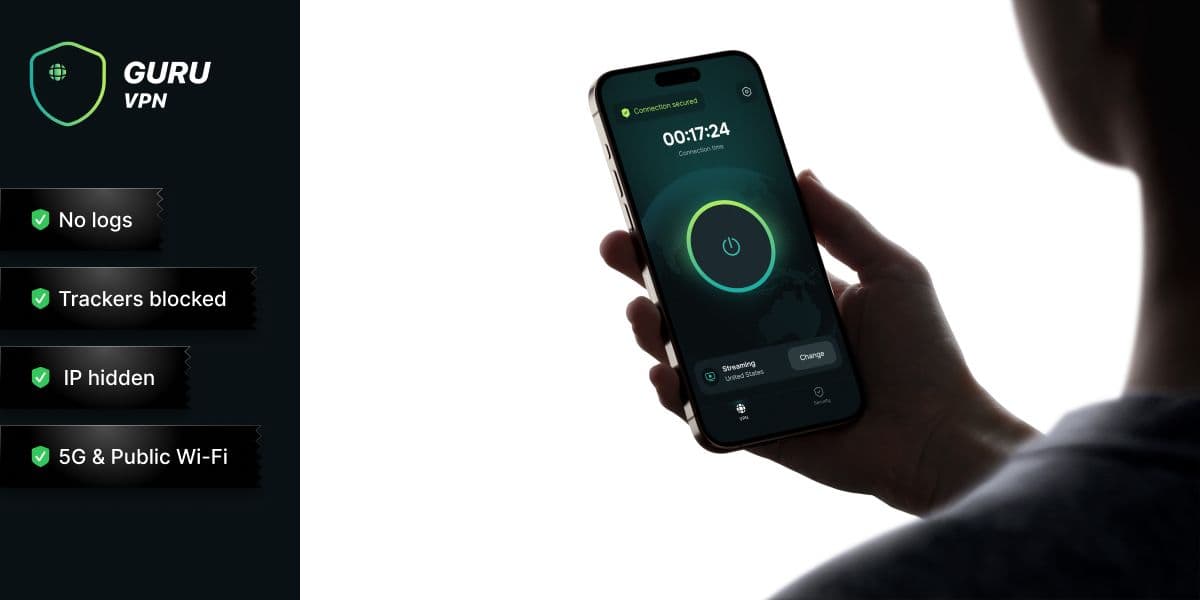
A reliable VPN should do more than protect your privacy — it should also deliver stable connections, excellent performance, and an intuitive user experience. Whether you're troubleshooting occasional connection issues or looking for a dependable VPN for everyday use, Guru VPN is designed to provide secure, fast, and consistent connectivity across all major devices.
Key Features
| Feature | Benefit |
|---|---|
Easy installation and intuitive interface | Set up the app in minutes and connect with just a few clicks or taps. |
Fast global servers | Enjoy smooth streaming, online gaming, video calls, and fast downloads with reliable performance. |
Strong encryption | Protect your personal information while browsing, shopping, banking, or using public Wi-Fi. |
Strict no-logs policy | Keep your online activity private without storing browsing history or connection logs. |
Cross-platform compatibility | Use Guru VPN on Windows, macOS, Android, and iPhone with a consistent experience across devices. |
Access to websites, apps, and online services | Stay connected to the content and services you need while traveling or using different networks. |
Global server network in 49+ countries | Choose from a wide range of locations for lower latency, better speeds, and broader online access. |
Unlimited bandwidth | Stream, browse, game, and download without speed throttling or data limits. |
How Guru VPN Helps Prevent Connection Issues
A stable VPN begins with a reliable infrastructure. Guru VPN operates a global network of high-performance servers designed to minimize unexpected disconnects and provide dependable connections throughout the day.
Optimized routing and automatic server selection help connect you to the best available server based on your location and current network conditions. If a particular server becomes busy or temporarily unavailable, you can quickly switch to another location using the extensive server network.
Guru VPN also uses modern technologies such as WireGuard®, ChaCha20, built-in leak protection, and intelligent routing to improve both speed and connection reliability. Regular application updates ensure continued compatibility with the latest versions of Windows, macOS, Android, and iOS.
With support for up to four simultaneous device connections, you can protect your phone, laptop, tablet, and desktop computer under a single account. If you ever need assistance, 24/7 customer support is available to help troubleshoot technical issues and answer your questions.
Designed with both beginners and experienced users in mind, Guru VPN combines strong security, fast performance, and a user-friendly interface to deliver a stable VPN experience every time you connect.
Best Practices to Prevent VPN Connection Problems
Following a few simple habits can significantly reduce the chances of experiencing VPN connection issues. Regular maintenance and the right settings help ensure a faster, more stable, and more secure connection.
Keep Your VPN Updated
Always install the latest version of your VPN application. Updates often include bug fixes, security improvements, and compatibility enhancements that help prevent connection problems. It's equally important to keep your operating system up to date, as outdated system software can interfere with VPN functionality.
Choose the Right Server
For the best performance, connect to a server that's geographically close to your location whenever possible. Nearby servers typically offer lower latency and faster speeds. If you notice slower performance or connection failures, try switching to another server, as some locations may become temporarily overloaded during peak usage.
Maintain a Stable Network
A reliable internet connection is essential for a stable VPN experience. Whenever possible, use a trusted Wi-Fi network with a strong signal. If your connection becomes unstable, reconnect to the network or switch between Wi-Fi and mobile data to determine whether the issue is network-related.
Enable Smart Features
Most modern VPN applications include features designed to improve both security and reliability. Enable Auto-Connect to establish a secure connection automatically whenever you go online. Turn on Kill Switch to prevent data exposure if the VPN disconnects unexpectedly, and use Automatic protocol selection to allow the application to choose the most suitable protocol for your current network conditions. These features help maintain a secure and uninterrupted VPN connection with minimal effort.
Frequently Asked Questions
This usually indicates that the VPN cannot establish a secure connection with the selected server. Common causes include an unstable internet connection, an overloaded server, firewall interference, or incorrect account credentials. Try switching to another server, restarting the application, or checking your network before attempting to reconnect.
Frequent disconnects are often caused by unstable Wi-Fi, weak mobile data coverage, or temporary network interruptions. Battery-saving features on mobile devices and outdated VPN software can also affect connection stability. Keeping your VPN application updated and using a reliable network can help minimize unexpected disconnections.
Yes, in many cases. A specific server may be temporarily unavailable or experiencing heavy traffic. Switching to another nearby server often restores a stable connection while maintaining good performance. If you need a server in a particular country, selecting another location within the same region may also resolve the issue.
Yes. Some antivirus or firewall programs may mistakenly identify VPN traffic as suspicious and block it. If you suspect a conflict, temporarily disable the security software to test the connection. If the VPN starts working, add it to the list of trusted applications before turning your antivirus or firewall back on.
Reinstalling the application is a good option after you've tried basic troubleshooting steps, such as checking your internet connection, restarting the app, changing servers, and updating the software. A clean installation removes corrupted files and restores the default configuration, which often resolves persistent connection issues.
If you've completed the recommended troubleshooting steps and your VPN still won't connect, it's time to contact Guru VPN support. Providing details such as your operating system, app version, selected server, VPN protocol, and any error messages will help the support team identify the problem more quickly. You can also review available plans and support resources if you need assistance with your account or subscription.
Restore Your VPN Connection and Stay Protected
Most VPN connection issues can be resolved without advanced technical knowledge. In many cases, checking your internet connection, restarting the application, switching to another server, updating the VPN software, or changing the connection protocol is enough to restore a secure connection. If those steps don't work, reinstalling the application or contacting customer support can help identify more complex issues.
The key is to troubleshoot methodically rather than trying multiple solutions at once. By understanding the most common causes of connection failures, you can quickly narrow down the problem and get back online with minimal disruption.
Choosing a reliable VPN provider also makes a difference. Guru VPN combines a global server network, modern VPN protocols, regular software updates, and responsive customer support to help minimize connection problems and deliver a stable browsing experience across all major devices.
If you're still experiencing issues, downloading the latest version of the application or performing a clean installation is often the fastest way to restore normal functionality. You can find the latest version and learn more about Guru VPN.
Keep Your VPN Running Smoothly
VPN connection problems can happen for many reasons, including unstable internet connections, outdated software, incorrect settings, overloaded servers, or conflicts with security applications. Fortunately, most of these issues are easy to diagnose and resolve with a few straightforward troubleshooting steps.
As covered throughout this guide, it's worth starting with the basics: check your internet connection, restart the VPN application, switch to another server, install the latest updates, and verify your account information. If the problem persists, changing the VPN protocol, reinstalling the app, or contacting customer support can often provide a quick solution.
A dependable VPN service also plays an important role in maintaining a stable connection. Guru VPN combines high-speed servers in more than 49 countries, modern technologies such as WireGuard® and ChaCha20, strong encryption, and an intuitive interface to deliver reliable performance across Windows, macOS, Android, and iPhone. Regular updates and responsive support help ensure the service continues to work smoothly as operating systems and network environments evolve.
The best way to avoid future connection issues is to keep your VPN application and operating system up to date, connect to the most appropriate server for your needs, and enable features such as Auto-Connect and Kill Switch whenever available. By making these simple practices part of your routine and using a trusted provider like Guru VPN, you can enjoy secure, stable, and uninterrupted online protection every time you connect.