 EN
EN BR
BR DE
DE ES
ES FR
FR RU
RU ID
ID TR
TR IT
IT JP
JP SA
SA VN
VN TH
TH KR
KR
How to Change Your VPN Location, Step by Step

 Key takeaways
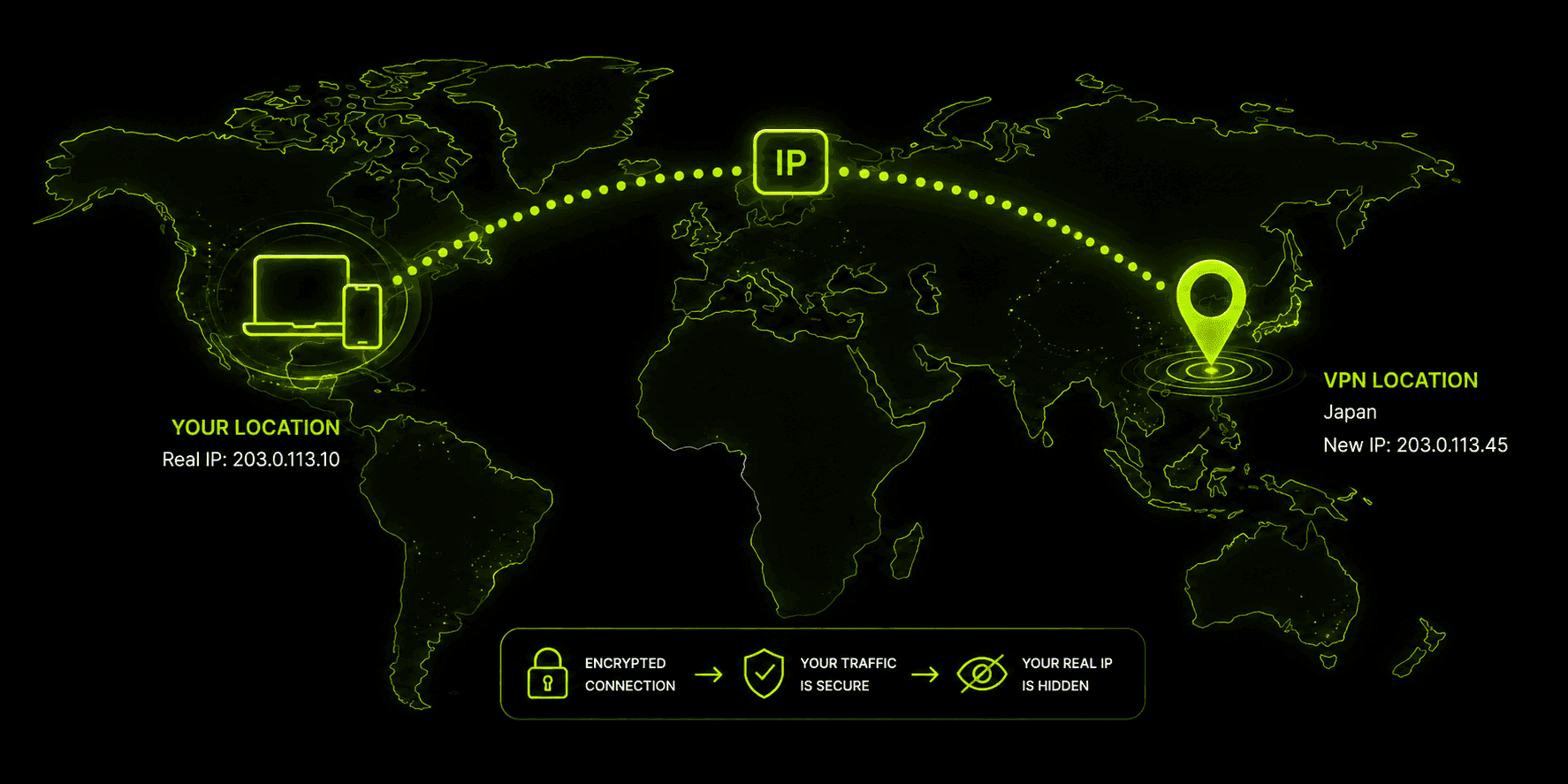
- A VPN changes your location by replacing your device's visible IP address with the IP address of a VPN server — websites and apps that check location based on IP see the server's country, not yours.
- Switching servers in an app like Guru VPN usually takes just a few taps: pick a new country or city from the server list, and reconnect.
- A VPN does not change your GPS location, so mapping apps, ride-share apps, and anything using your phone's actual hardware location will still show where you really are.
- Browser location permissions can override a VPN's IP-based location entirely if a site has previously been granted direct access to your device's GPS or Wi-Fi positioning.
- Free VPNs can technically change your location too, but usually with a much smaller list of countries, slower speeds, and weaker privacy practices than a paid plan.
If you've ever wondered whether a VPN really changes your location or just makes it look that way, the honest answer is: both, depending on what "location" means to whatever you're using at the time. Learning how to use vpn to change location is simple enough — pick a country, hit connect — but understanding what's actually happening underneath is what helps when something doesn't behave the way you expected, like an app that still seems to know exactly where you are. This guide walks through exactly how to change vpn location on the devices you're most likely using, how to confirm it actually worked, and where a VPN's influence over your apparent location stops.
Key Takeaways
- A VPN changes your location by replacing your device's visible IP address with the IP address of a VPN server — websites and apps that check location based on IP see the server's country, not yours.
- Switching servers in an app like Guru VPN usually takes just a few taps: pick a new country or city from the server list, and reconnect.
- A VPN does not change your GPS location, so mapping apps, ride-share apps, and anything using your phone's actual hardware location will still show where you really are.
- Browser location permissions can override a VPN's IP-based location entirely if a site has previously been granted direct access to your device's GPS or Wi-Fi positioning.
- Free VPNs can technically change your location too, but usually with a much smaller list of countries, slower speeds, and weaker privacy practices than a paid plan.
What Actually Happens When You Change Your VPN Location?
When you connect to a VPN server in a different country, your device's outbound traffic starts appearing to come from that server's IP address instead of your own. Every site, app, or service that checks your location by looking at your IP address — which covers the vast majority of geo-restrictions, regional pricing, and location-based content you'll run into — now sees the VPN server's country and city instead of wherever you actually are. Your real traffic is also encrypted along the way, so beyond just changing what location shows up, it hides the browsing itself from your ISP and anyone else on the network.
What doesn't change is anything based on your device's actual hardware location — GPS, cell tower triangulation, or Wi-Fi-based positioning. A VPN operates at the network traffic level, not the sensor level, so an app pulling your coordinates directly from your phone's GPS chip will still report where you physically are, regardless of which VPN server you're connected to. This distinction is the single most common source of confusion people run into, and it's worth keeping in mind before assuming a VPN alone will fool every app equally.
How to Use a VPN to Change Location on Any Device
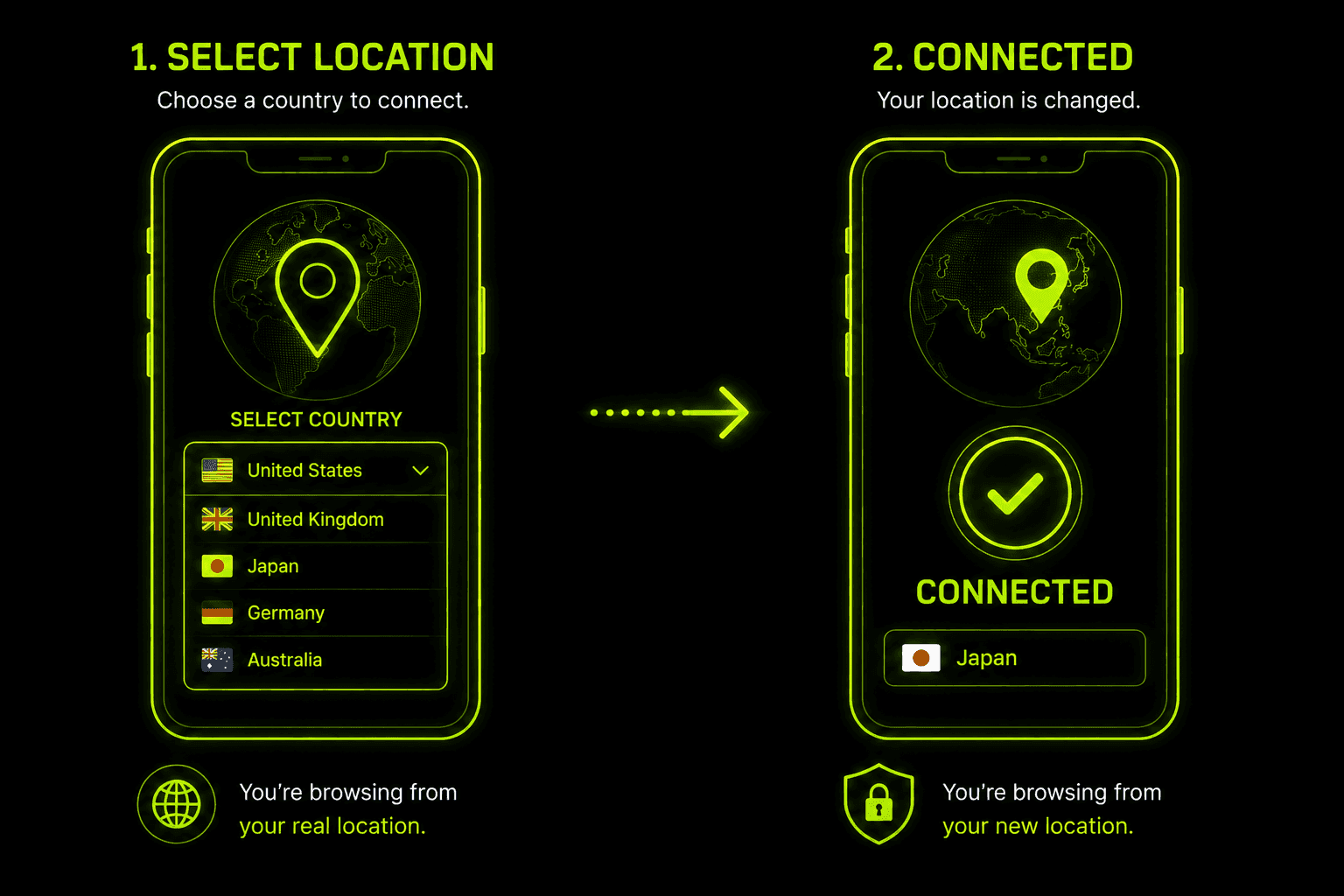
The general pattern is nearly identical across platforms: open the app, sign in, pick a country or city from the server list, and connect. The specific menu paths differ slightly, so here's how to change my VPN location on each platform, step by step.
Changing Your VPN Location on iPhone
- Open your VPN app and make sure you're signed in.
- Tap the server or location selector, usually shown as a country name or flag near the top of the main screen.
- Browse or search the list of available countries and cities, and select the one you want.
- Tap Connect. iOS may prompt you to allow a VPN configuration the first time — accept it, since this is how the app is able to route your traffic through the tunnel at all.
- Once connected, the app typically shows a "Connected" status along with the new location.
To switch again later, disconnect first, pick a different location from the same list, and reconnect — there's no need to reinstall or reconfigure anything.
Changing Your VPN Location on Android
- Open the app and sign in if you haven't already.
- Look for a server list or location picker — often a search bar or a scrollable list of countries, sometimes with a map view.
- Select your preferred country or city.
- Tap Connect, and approve Android's VPN connection request if it's your first time connecting on that device.
- Confirm the app shows the new server location once the connection is active.
Android handles switching the same way as iPhone: disconnect, choose a different location, reconnect. Some apps also let you set a favorite or default location so reconnecting later skips the selection step entirely.
Changing Your VPN Location on Windows and Mac
- Open the desktop app and sign in.
- Click the location or server selector — on desktop apps this is usually a dropdown or sidebar list rather than a single button.
- Search or scroll to find the country or city you want, and select it.
- Click Connect. Desktop operating systems may ask you to approve a network extension or VPN permission the first time you connect — this is normal and only needs to be approved once.
- Check the app's status indicator to confirm you're connected to the new location.
The steps are close enough between Windows and macOS that the differences come down to where each OS places its own permission prompts, not how the app itself works. Linux users following a similar app typically get an equivalent server-list flow through a GUI client, or a direct command like connecting via a specified country code through a terminal-based client for VPNs that offer one.
How to Verify Your VPN Location Actually Changed
Trusting the "Connected" label in your app is usually fine, but it's worth doing a quick check the first time, or any time something seems off:
- Check your IP address. Search "what is my IP" or visit any IP-lookup page before and after connecting. The address and the reported country should match your new VPN server location once connected.
- Look for a location mismatch. If a site still shows your real city or country after connecting, something isn't routing through the tunnel correctly — try disconnecting and reconnecting, or restarting the app.
- Test a location-specific page, like a retailer's homepage or a streaming service's content library, to see whether it reflects the new region. This confirms the change is actually affecting how outside services see you, not just what your own app reports.
This whole check takes under a minute and is a good habit any time you're relying on the location change for something specific, like accessing region-locked content or comparing prices.
What Changing Your VPN Location Doesn't Do
A VPN is genuinely effective at what it's built for — masking your IP-based location — but it has real limits worth knowing before you assume it fools everything:
It doesn't change your GPS location. Apps that pull your coordinates directly from your device's GPS, cell towers, or Wi-Fi positioning — maps, ride-share apps, food delivery, Find My-style tracking — will still show your real physical location, since a VPN affects network traffic, not hardware sensors.
Browser location permissions can override it. If you've previously allowed a website direct access to your device's location (the permission prompt browsers show), that site can still read your real GPS or Wi-Fi-based position through that permission, regardless of what your VPN's IP suggests. Revoking location permissions for sites you don't fully trust closes this specific gap.
It doesn't change your App Store or Play Store region. Downloading apps that are only available in a specific country's app store usually requires changing the account region itself in your Apple ID or Google account settings — a VPN alone won't unlock a storefront tied to your account's registered country.
It doesn't change your device's timezone or language. These are separate system settings a VPN has no influence over, and some sites can use a mismatch between your VPN's claimed country and your device's timezone as a weak signal that something's inconsistent.
None of this makes changing your VPN location less useful — it just means knowing which category a given app or service falls into before assuming a new server location alone will solve the problem.
Why Change Your VPN Location?
The reasons people search for this range from practical to just curious, and most fall into a handful of common categories:
Keeping access to home content while traveling. Streaming libraries, banking sites, and news outlets often restrict access based on country. Connecting to a server back home lets you keep using the services you already pay for as if you never left.
Comparing regional prices. Flights, hotel bookings, software subscriptions, and even some online retailers price differently by region. Checking the same page from a few different VPN locations can occasionally turn up a meaningfully lower price.
Testing how a site or app looks elsewhere. Developers, marketers, and curious users alike use this to see region-specific versions of a website, check localized pricing pages, or confirm content restrictions before they affect real users.
General privacy on top of location. Even when the location change itself isn't the main goal, masking your real IP address as a side effect keeps your ISP and networks you connect through from building as clear a picture of your activity.
Understanding vpn change location behavior really comes down to knowing which of these goals you're solving for — the mechanics stay the same, but what counts as "success" looks different depending on whether you're chasing content, price, or just privacy. Some people search for this as change location vpn rather than the reverse, but the process and the caveats covered above are identical either way.
If you just want to change vpn location quickly without digging through menus every time, most apps let you set a favorite or default server, so switching back to a go-to location next time is one tap instead of a full search.
Can You Change VPN Location for Free?
If you're specifically looking for a vpn to change location free of any subscription cost, it's worth going in with realistic expectations. Free VPN tiers can absolutely change your apparent location — the underlying mechanism doesn't require a paid plan — but they typically come with a much smaller list of countries to choose from, slower speeds due to server congestion, and data caps that make them impractical for anything beyond occasional, light use. Some free VPNs also monetize through data collection or ad injection, which works against the privacy half of what most people want from this in the first place.
For anyone using this occasionally to check a price or peek at a site from another country, a free tier's limitations may not matter much. For anything more frequent — regularly accessing home content while traveling, or relying on a consistent connection — the narrower server list and slower speeds tend to become the deciding factor fairly quickly.
For devices without a dedicated VPN app — smart TVs, some game consoles, certain streaming boxes — the usual workaround for how to use a vpn to change location is setting the VPN up at the router level instead, so every device on the network inherits the new location automatically without needing its own app.
Why Choose Guru VPN
Whatever you're changing your location for, the app doing the switching matters as much as the concept itself. Guru VPNis built around a straightforward server list, so picking a new country is a quick selection rather than a multi-step process, and the connection itself uses strong encryption by default so the location change isn't the only thing being protected.
It's worth checking the current spread of available server locations to confirm the specific countries you care about are covered, and comparing what's included at each tier on the pricing page before deciding which plan matches how often you expect to switch locations.
Frequently Asked Questions
Yes, in the sense that matters to most websites and apps — it changes the IP address your device shows to the outside world, which is how the vast majority of location-based restrictions and content actually work.
No. It changes your IP-based location, but apps that read your device's GPS, Wi-Fi positioning, or previously granted browser location permissions can still show your real physical location regardless of your VPN connection.
First, confirm you're actually connected and check your IP through a lookup page. If the IP has changed but a specific site still shows your old location, try clearing that site's cookies/cache or revoking any location permission you'd previously granted it, since that can override the VPN's IP-based location entirely.
Generally yes for personal use in most countries, though it can violate the terms of service of specific platforms (like streaming services), which may restrict or flag accounts that appear to bypass regional content rules.
As often as you'd like — there's typically no limit to how many times you disconnect and reconnect to a different server, aside from the practical time it takes to reconnect each time.
Conclusion
Changing your VPN location is one of the simplest things you can do with a VPN app, but knowing what it actually affects — and what it doesn't — is what makes the result predictable instead of confusing. It reliably changes what IP-based services see, which covers most streaming, pricing, and content restrictions you'll run into, while leaving GPS-based location, browser permissions, and app-store regions untouched. Guru VPN keeps the switching part simple, so the only thing left to think about is picking the right location for what you're actually trying to do.