

 BR
BR DE
DE ES
ES FR
FR RU
RU
Articles
Fake and Scam Websites: How to Spot Them and Stay Safe Online

Guru VPN experts
20.01.2026
Ever wondered how to access settings on your router or secure your home network? It's all about finding that little string of numbers, otherwise known as the IP address. This small string of numbers acts as the gateway into your network, enabling you to manage settings for Wi-Fi, connectivity troubleshooting, and even advanced tool setups such as a VPN.
In this tutorial, you will learn how to find your router's IP address on any device, be it Windows, Mac, Android, iOS, or Linux. We'll be sure to include clear steps, practical tips, and essential nuances for the complete beginner looking to familiarize themselves with complex terms in simple language. By the end, you will know not only your router's IP but also why it matters in order to keep your network secure and optimized, especially when working with a VPN service like GuruVPN.
Before specific device instructions are provided, it's first necessary to understand what a router IP address actually is. In simple terms, your router's IP address is what allows your devices to communicate with the router, and in turn with the internet.
There are two types of IP addresses to know:
Most routers use standard private IP addresses, such as 192.168.0.1, 192.168.1.1, or 10.0.0.1. The reason why you need to know this IP is because you can access an admin panel of your router, change settings, troubleshoot, and even create a VPN to secure the network traffic.
Why does it matter for security? The knowledge of a router's IP opens a wide range of possibilities to secure one's Wi-Fi, change default passwords, or enable VPN support. Without it, you won't be able to make the necessary changes to keep your network safe.
Finding your router’s IP address on Windows is straightforward, and you can do it in two different ways: through the Command Prompt or through the graphical interface. Below are both methods, so choose whichever feels more comfortable.
ipconfig and press Enter.
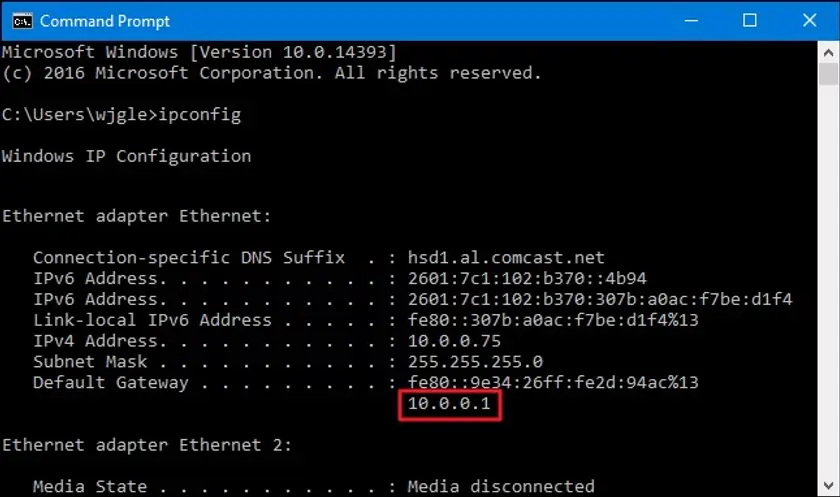
What it’ll look like on your computer. Source: Howtogeek
Tip. If you see multiple adapters (like “VirtualBox” or “Bluetooth”), ignore them and look for the one that shows IPv4 and DNS values.
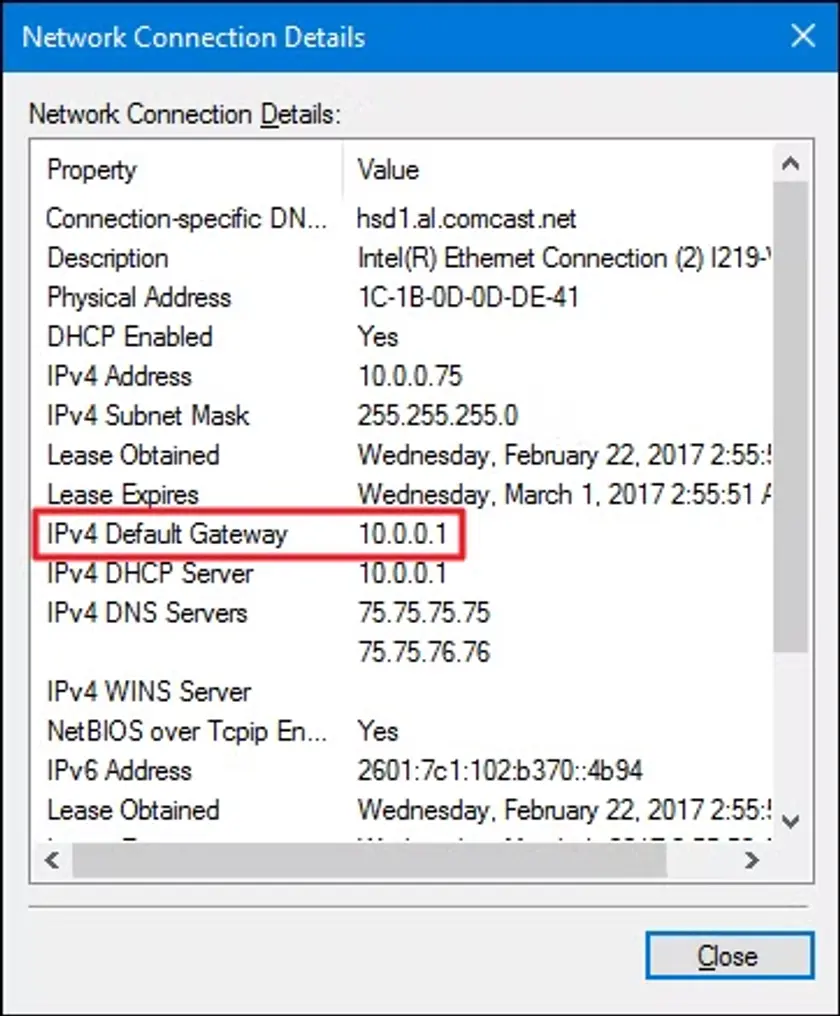
You should find this. Source: Howtogeek
Note. The layout may vary slightly depending on your Windows version (Windows 10 vs. Windows 11), but the information is always in the network’s Properties screen.
Get-NetIPConfiguration | Select-Object -ExpandProperty IPv4DefaultGateway
macOS makes it easy to locate your router’s IP address through the system settings, but you can also use the Terminal if you prefer a command-line method. Both approaches are simple and reliable.
Look for the field labeled Router - the number you see here is your router’s IP address.
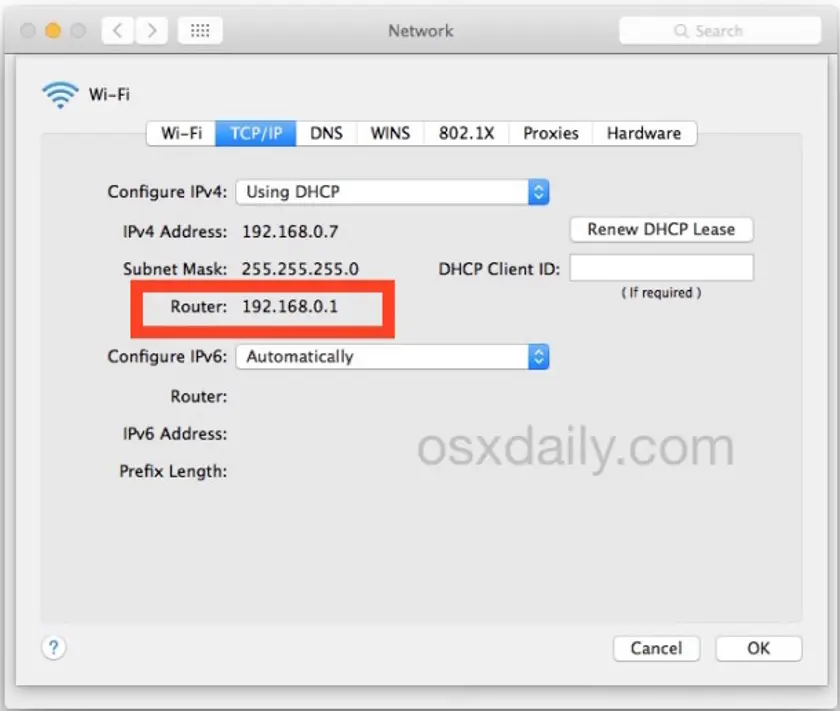
Source: OSXDaily
Tip. If you’re using macOS Monterey or earlier, the menu labels might differ slightly, but the information is always under the TCP/IP tab.
netstat -nr | grep default
Alternative command:
route -n get default | grep gateway
This provides the gateway address in a super-clean format.
Android devices provide quick access to network details, including your router’s IP address. However, menu names and layouts can vary slightly depending on your phone manufacturer (Samsung, Xiaomi, Google Pixel, etc.) and your Android version.
Tip. On many devices (Google Pixel, OnePlus, Motorola), the router’s IP appears immediately under “Gateway.” Samsung devices may list it under View more or IP settings.
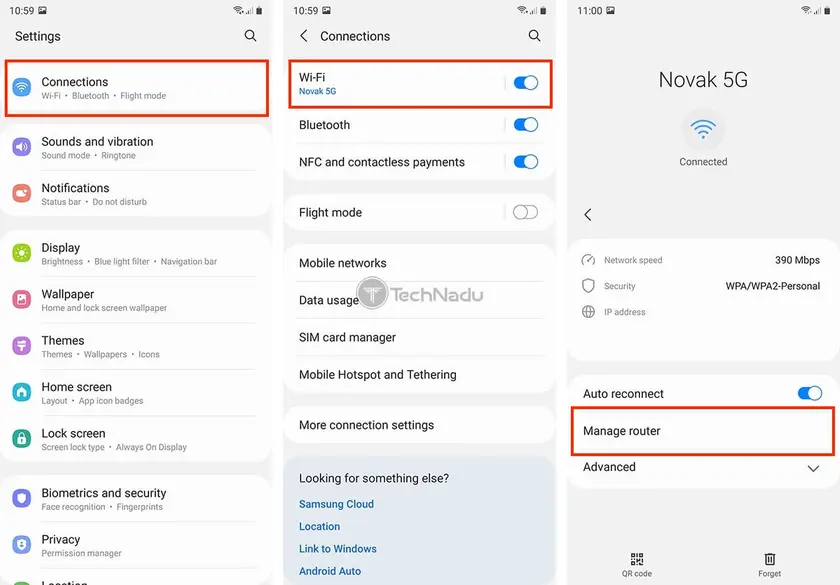
Source: TechNadu
If your phone’s interface hides advanced network details, you can use a third-party app (e.g., “WiFi Analyzer,” “IP Tools,” or “Fing”). These apps typically display the router’s IP as Gateway or Default Gateway.
Note. You don’t need these apps for security purposes - they’re just helpful if your phone buries the network information deeply in menus.
Apple makes it very easy to find your router’s IP address on iPhone and iPad. The information is located right inside the Wi-Fi settings, and you can access it in just a few taps.
That’s it - no extra tools or apps required.
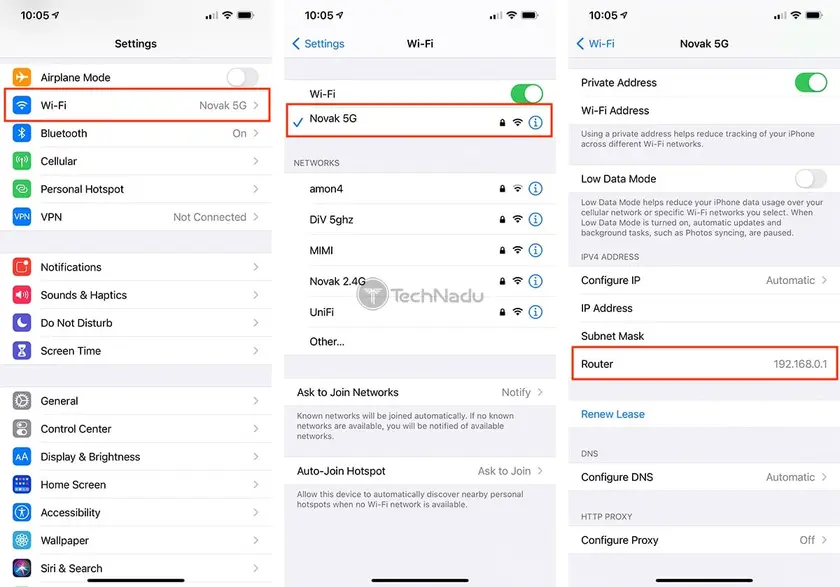
Source: TechNadu
Linux provides several easy ways to discover your router’s IP address. Whether you prefer using the terminal or a graphical interface, the process is simple and works across most distributions, including Ubuntu, Fedora, Linux Mint, Debian, and others.
You can find the router’s IP with a single command:
Enter the following command: ip route | grep default
Example output:
default via 192.168.1.1 dev wlan0
Here, 192.168.1.1 is the router’s IP.
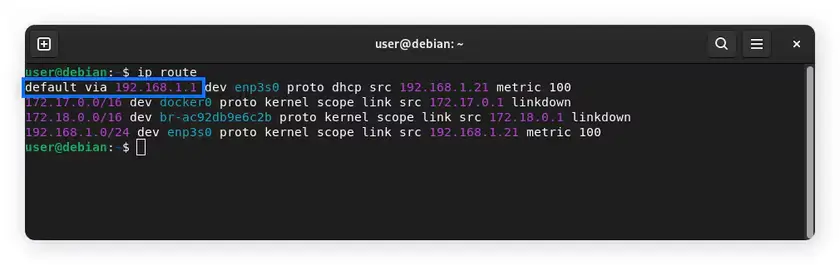
Source: Norton
If the above doesn’t work on your system, try:
route -n | grep 'UG[ \t]'
You’ll see a row beginning with your router’s IP under the Gateway column.
If you're using a desktop environment like GNOME, KDE, Cinnamon, or XFCE:
Note! Menu names vary slightly between distros, but “Gateway” is always the value you're looking for.
ip route doesn’t show a gateway, your connection may be misconfigured - try reconnecting to the network or checking Network Manager.For advanced users: nmcli dev show | grep IP4.GATEWAY
This command works on any system with NetworkManager.
Even though finding your router’s IP address is usually straightforward, certain scenarios or network configurations can make the process less obvious. Below are practical tips and troubleshooting steps to help you quickly resolve any issues and understand what’s happening inside your network.
If you don’t see a Default Gateway or Router address on your device:
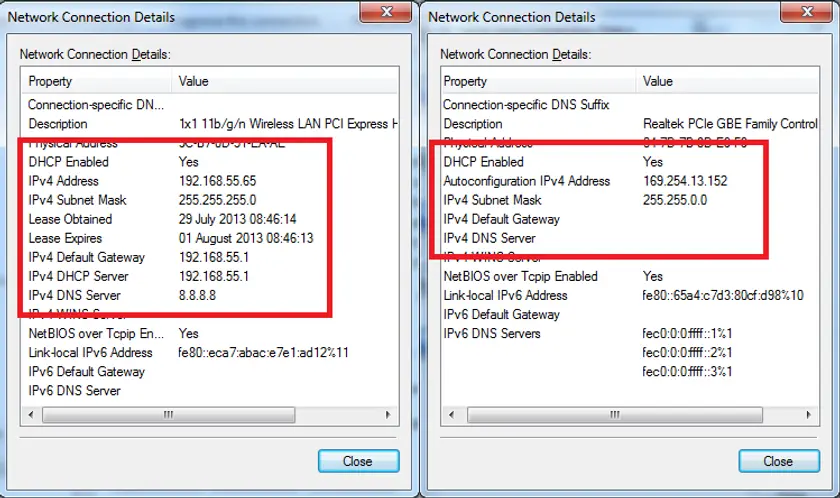
This type of address is called APIPA, and it means your device failed to get a valid IP from the router.
Source: Blue Compute
To fix this:
VPNs can add virtual network interfaces, which sometimes complicate things:
Tip! If the gateway appears wrong, temporarily disconnect the VPN, find the router IP, then reconnect.
Mesh systems (Eero, Google Nest, TP-Link Deco, Orbi) sometimes use non-standard private IP ranges. That’s normal.
Common mesh router IP examples:
Don’t panic if it doesn’t look like the usual 192.168.x.x - the process is still the same.
On devices with multiple adapters (Windows PC with VPN, virtual machines, Ethernet, Wi-Fi):
These can show irrelevant gateway values.
Once you’ve found the router IP, you can verify it’s working:
Windows/macOS/Linux Terminal:
ping 192.168.1.1
If you receive responses, your router is functioning correctly.
If not:
If you cannot access your router at all:
Important! Only do this if you’re comfortable reconfiguring your Wi-Fi network afterward.
Once you access your router:
GuruVPN supports router-level configurations, making it easier to protect every device on your network.
If you’re using (or considering using) a VPN, knowing your router’s IP address becomes even more important. Your router is the central point of your home network, and many advanced VPN features depend on accessing your router’s settings.
Installing a VPN at the router level allows every device connected to your Wi-Fi - phones, laptops, smart TVs, game consoles - to benefit from secure, encrypted traffic without installing apps individually.
To configure GuruVPN on a router, you will need to:
And to do that, the very first step is knowing your router’s private IP address.
Your router IP gives you access to security settings such as:
These steps are essential to keep your network safe - and a VPN like GuruVPN adds an extra layer by encrypting all outgoing traffic.
When your VPN isn’t working properly, a misconfigured router is often the root cause. Being able to log in to your router helps you troubleshoot issues like:
Knowing how to access your router allows you to quickly diagnose and fix these problems.
A VPN creates a secure tunnel for your internet traffic. But the router is the device that decides how traffic moves between your local network and the outside world.
By accessing your router (via its IP address), you can:
This is especially useful for users who want maximum performance and stability with GuruVPN.
Your router contains logs, connected-device lists, and DNS configurations. Managing these properly strengthens your privacy, even before the VPN connection is established.
GuruVPN complements this by ensuring:
But again? you can only fine-tune your privacy setup if you know where to find (and how to access) your router.
Finding your router’s IP address may seem like a small technical task, but it opens the door to full control over your home network. Whether you’re adjusting Wi-Fi settings, improving security, setting up parental controls, or configuring a VPN, understanding how to access your router is the foundation for a safer and more reliable online experience.
With the right knowledge, you can:
And this is where GuruVPN becomes a powerful ally. By integrating VPN protection directly into your router or using the GuruVPN app on your devices, you ensure that every connection leaving your network is encrypted, private, and shielded from intruders or prying eyes.
Take the next step in securing your digital life - try GuruVPN and protect your network with confidence.