

 BR
BR DE
DE ES
ES FR
FR RU
RU

Articles
Fake and Scam Websites: How to Spot Them and Stay Safe Online

Guru VPN experts
20.01.2026

Everything worked fine just a moment ago. The website loaded instantly, pages opened normally, and there were no signs of trouble. Then the VPN was turned on, and suddenly the browser displayed a familiar but confusing message: 502 Bad Gateway.
For many users, this is where frustration begins. Is the website down? Is the server broken? Is the VPN causing problems? Or is it just bad timing?
This article breaks down a fictional case that mirrors what thousands of users experience every day. We’ll follow a step-by-step investigation of a 502 error that appeared only when a VPN was enabled - and show how the issue wasn’t a “broken website” at all, but a networking conflict caused by how VPNs change routing, IP addresses, and DNS behavior.
Let’s start with the case itself.
The strange part was that the issue wasn’t consistent. As soon as the VPN connection was turned off, the website loaded instantly. Turning the VPN back on brought the error back again. The behavior was repeatable and predictable - which made it even more confusing.
At this point, the natural assumption was that the website itself was unstable or temporarily down. However, checking from another device and network showed that the site was working normally. There were no outage notifications, and the service appeared to be fully operational for other users.
Switching browsers didn’t change anything. Clearing cookies and cache had no effect. The error only appeared when the VPN was active.
What became clear was that enabling the VPN fundamentally changed how the request reached the website. The destination was the same, but the route, the IP address, and the DNS resolution were all different. Somewhere along that path, the connection was failing - and the server responded with a generic 502 error.
To understand why this happens, it’s important to look at what a 502 Bad Gateway error actually means and where it originates.
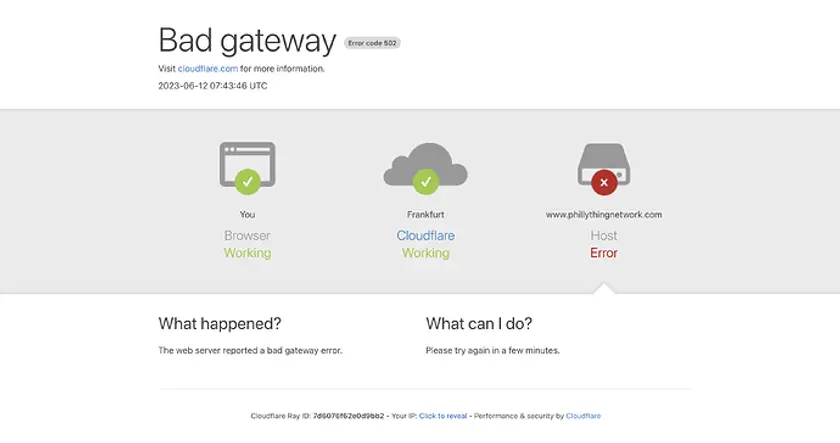
502 Bad Gateway screen. Source: Cloudflare
A 502 Bad Gateway means that one server in the request chain received an invalid or unexpected response from another server. When you open a website, your browser usually isn’t talking directly to the final server. Instead, the request often passes through several layers, such as:
If any of these components fail to communicate properly with the next one, the server acting as the “gateway” returns a 502 error. In simple terms, a 502 error means:
“I tried to get data from another server, but the response I received didn’t make sense or never arrived.”
This is why 502 errors are often:
When a VPN is enabled, those conditions change. The request comes from a different IP, may use a different DNS resolver, and follows a different network path. If any part of the infrastructure isn’t prepared to handle that change, the connection can fail - even though everything looks normal without the VPN.
Let's get back to our case.
It was clear that the problem wasn’t random. The error appeared only when the VPN was enabled, which meant the next step was to isolate exactly what the VPN was changing.
The first and simplest test was disabling the VPN entirely.
As soon as the VPN was turned off, the website loaded normally. Pages opened without delays, and no errors appeared. This confirmed that the internet connection itself was stable and that the website was online.
The VPN wasn’t “breaking the internet” - it was changing something specific in the request.
Next, the VPN was turned back on, but with a different server location selected.
The result was different:
This pointed to an IP-based or regional factor. The website or one of its upstream services was likely handling traffic differently depending on where the request came from.
The next test involved switching VPN protocols.
After changing from one protocol to another, the connection behavior changed again. In some cases, the site loaded more reliably. In others, the error appeared only on certain pages.
This suggested that the issue wasn’t just about IP addresses - connection handling, packet size, or TLS negotiation could also be involved.
Finally, DNS settings were checked.
To quickly verify whether DNS latency or resolution issues were involved, a simple DIG test was used.
On macOS, the Terminal was opened:
On Windows, Command Prompt was launched:
Then, a basic test looked like this:
time dig example.com
This command checks how long it takes for the DNS server to respond. The key value to watch is Query time, which shows how quickly the DNS request is resolved. Running the same command with and without the VPN - or against a different DNS resolver such as Google Public DNS - made it clear that response times changed depending on the VPN route.
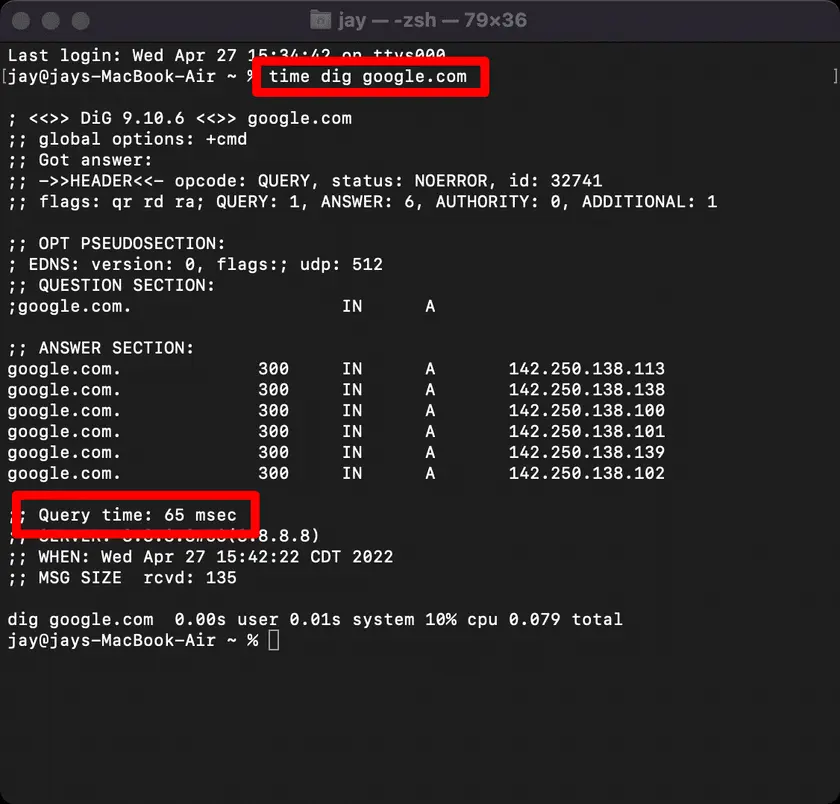
DNS response time test on Terminal App via Mac OS. Source: WP Rocket
While this test reflects results from a single location, it’s enough to confirm whether DNS behavior shifts when the VPN is active. In this case, switching to consistent DNS settings through the VPN reduced instability and improved page loading.
This confirmed that the VPN wasn’t causing the 502 error directly, but it was exposing DNS and routing differences that affected how the site was reached.
With the VPN enabled, domain name resolution was handled by a different DNS server than usual. After switching DNS settings to use the VPN’s DNS consistently, the behavior improved.
By testing one variable at a time - VPN status, location, protocol, and DNS - the cause became much clearer. The website wasn’t broken, but certain VPN routes triggered a failure somewhere between the proxy and the backend server.
When the VPN was enabled, requests came from a different IP range. That IP range was treated differently by the site’s upstream systems - most likely a CDN or web application firewall (WAF).
In this scenario, the CDN accepted the incoming request but failed to establish a valid connection with the backend server. Instead of returning a clear error message, it responded with a generic 502 Bad Gateway. From the user’s perspective, the site looked broken, even though it was accessible from other networks.
Several factors likely contributed:
Traffic from certain VPN IP ranges may be restricted or throttled, triggering backend failures.
Some firewalls treat VPN traffic as high-risk and block or delay upstream connections.
The backend server may not have been configured to properly handle requests from all regions or IP pools.
In short, the 502 error wasn’t caused by a broken website or a faulty VPN. It was the result of a mismatch between how the site’s infrastructure handled different network paths.
The first successful step was changing the VPN server location. Switching to a different region immediately restored access, confirming that the issue was tied to how specific IP ranges were handled by the site’s infrastructure.
Next, the VPN protocol was changed. After switching protocols, the connection became more stable and the error stopped appearing on subsequent visits. This suggested that certain connection parameters - such as packet handling or TLS negotiation - played a role in triggering the 502 response.
DNS settings were also adjusted to ensure that all domain resolution consistently went through the VPN. Once DNS behavior was aligned with the VPN tunnel, page loading became more predictable and no longer failed intermittently.
In the end, no changes were required on the website itself. The issue was resolved entirely by:
This outcome highlights an important point: many 502 errors that appear “out of nowhere” are actually network path issues, not server outages. Small changes in how a request reaches a site can make the difference between a successful connection and a gateway error.
Yes, there are several tools and utilities that help verify DNS behavior and routing when using a VPN, and detect whether DNS requests are properly going through the VPN tunnel instead of leaking outside it.
Below are the most practical options, from quick checks to deeper technical analysis.
These websites show which DNS servers your connection is actually using:
What they reveal:
No technical skills required - simply open the site with your VPN enabled and review the results.
These tools show the path packets take from your device to the destination.
Commands:
If the route changes significantly when the VPN is enabled, DNS and traffic may be handled differently by upstream systems.
These tools capture real DNS packets on network interfaces.
Example tcpdump command:
sudo tcpdump -i <interface> port 53
What you can see:
This method is more advanced and requires networking knowledge.
Many VPN applications include built-in options such as:
In most cases, enabling these options ensures consistent DNS routing with a single click.
Some browser extensions can quickly display:
These are useful for fast, visual confirmation without using the command line.
✅ If DNS servers belong to your VPN provider or match the VPN location, routing is likely correct.
❌ If DNS servers belong to your ISP or local network while the VPN is enabled, DNS leaks are likely present.
⚠️ Mixed or inconsistent results indicate partial routing issues.
After adjusting the VPN settings, everything returned to normal. Pages loaded without errors, connections felt stable again, and browsing continued uninterrupted. No server fixes, no support tickets, no downtime - just a clearer understanding of what had actually caused the problem.
While every case is different, most 502 errors fall into a few familiar categories:
In many situations, VPNs don’t cause these issues - they expose them by changing the network path.
A well-designed VPN minimizes these conflicts by handling routing and DNS consistently and intelligently. Guru VPN is built with that exact goal in mind:
Instead of troubleshooting connections, users can focus on what matters - staying secure and browsing without interruptions.
VPN gives reliable connectivity, predictable behavior, and security that works quietly in the background. When VPN infrastructure is well-managed, issues like unexpected 502 errors become far less common - and when they do appear, they’re easier to resolve.
With the right VPN, the internet simply works the way it should.