

 EN
EN BR
BR DE
DE FR
FR RU
RU
Artículos
Sitios web falsos y fraudulentos: cómo detectarlos y mantenerte seguro en línea

Guru VPN experts
20.01.2026

La privacidad en línea se ha convertido en una preocupación cotidiana. Las redes Wi-Fi públicas, el trabajo remoto, las restricciones geográficas, el seguimiento de datos y el aumento de la vigilancia han llevado a muchos usuarios a buscar mejores formas de proteger su conexión a internet. Ahí es donde entran las VPN.
Crear una VPN no es lo mismo que simplemente utilizarla. Detrás de cada conexión VPN segura hay protocolos de cifrado, gestión de claves, mantenimiento de servidores y actualizaciones constantes. Lo que parece sencillo en teoría puede volverse rápidamente complejo en la práctica, especialmente cuando la privacidad y la seguridad son los objetivos principales.
Aunque la mayoría de las personas conocen los servicios de VPN comerciales, cada vez más usuarios se hacen una pregunta diferente: ¿puedo crear mi propia VPN? La idea de gestionar una VPN personal resulta atractiva: control total, sin proveedores externos y la satisfacción de construir algo por uno mismo. Para usuarios con curiosidad técnica, también puede ser una experiencia de aprendizaje muy valiosa.
Esta guía te acompaña a lo largo de todo el proceso. Comenzaremos explicando cómo funcionan realmente las VPN y luego mostraremos paso a paso cómo crear tu propia VPN. A lo largo del camino, destacaremos las limitaciones y los riesgos de las VPN autoalojadas y explicaremos cuándo una VPN comercial puede ser la opción más práctica. Así podrás responder con claridad a una pregunta clave: ¿es mejor crear tu propia VPN o utilizar una solución profesional diseñada para protegerte desde el primer día?
Ya hemos explicado cómo funcionan las VPN en uno de nuestros artículos anteriores, pero antes de entrar en archivos de configuración y ajustes de servidor, conviene repasar brevemente los conceptos básicos.
Antes de crear una VPN, es importante entender qué hace realmente. Muchas personas asocian las VPN con “anonimato total” o “seguridad completa en línea”, pero la realidad es más matizada.
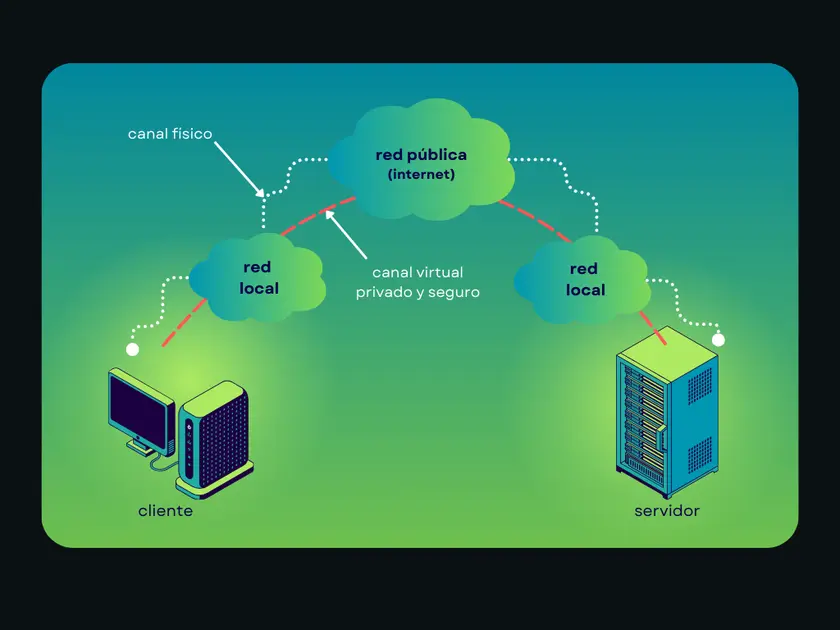
En esencia, una VPN (Virtual Private Network) crea un túnel cifrado entre tu dispositivo y un servidor VPN. Todo el tráfico de internet que pasa por este túnel queda protegido frente a observadores externos, como operadores de Wi-Fi público, administradores de red o tu proveedor de internet (ISP). En lugar de tu IP real, los sitios web solo ven la IP del servidor VPN.
Detrás de esta idea simple existen tres componentes clave:
Una VPN encapsula el tráfico de internet dentro de un túnel seguro. Esto impide que terceros lean o modifiquen los datos durante su transmisión. Incluso en redes Wi-Fi públicas no seguras, el tráfico VPN cifrado sigue siendo ilegible para los atacantes.
Las VPN cifran los datos antes de que salgan de tu dispositivo. Las VPN modernas utilizan estándares de cifrado robustos que hacen prácticamente imposible descifrar el tráfico interceptado sin las claves correctas. La seguridad depende en gran medida de cómo se generan, almacenan y rotan las claves, algo especialmente importante en configuraciones autoalojadas.
La autenticación garantiza que solo usuarios y dispositivos autorizados puedan conectarse al servidor VPN. Normalmente se utilizan certificados, claves o credenciales para verificar la identidad antes de intercambiar tráfico cifrado.
Comprender las limitaciones es fundamental antes de crear tu propia VPN:
Esta diferencia es clave porque muchas VPN DIY se crean con expectativas poco realistas. Aunque una VPN personal puede cifrar el tráfico y proteger las conexiones, no ofrece automáticamente el mismo nivel de privacidad, redundancia o alcance global que una infraestructura VPN comercial.
Con estos fundamentos claros, ahora podemos analizar cuándo realmente tiene sentido crear tu propia VPN y cuándo no.
Crear tu propia VPN puede ser útil, pero solo en situaciones concretas. A pesar del atractivo del control total y la independencia, una VPN autoalojada no es una solución universal para la privacidad en línea.
En la práctica, montar tu propia VPN tiene sentido principalmente para casos de uso limitados y bien definidos.
En primer lugar, una VPN DIY es una buena opción si tu objetivo es proteger tu conexión en redes públicas o no confiables. Cifrar el tráfico en Wi-Fi de hoteles, aeropuertos o cafeterías es uno de los beneficios más prácticos y fiables de una VPN personal.
En segundo lugar, puede ser útil para el acceso remoto a una red privada. Muchas personas configuran VPNs para conectarse de forma segura a servidores domésticos, sistemas de oficina o herramientas internas mientras viajan.
En tercer lugar, crear una VPN puede ser valioso como experiencia de aprendizaje. Para quienes están interesados en redes, administración de sistemas o ciberseguridad, configurar una VPN ofrece experiencia práctica con cifrado, autenticación y gestión de servidores.
Sin embargo, también existen limitaciones claras.
Una VPN autoalojada normalmente no es adecuada para el anonimato, la privacidad a gran escala o eludir restricciones geográficas. Como todo el tráfico pasa por un único servidor con una sola dirección IP, la actividad sigue siendo rastreable. No hay tráfico compartido, infraestructura global ni redundancia integrada.
En resumen, crear tu propia VPN tiene sentido cuando buscas control, seguridad para un caso específico o experiencia técnica, pero no cuando necesitas privacidad inmediata, acceso global o una solución sin mantenimiento.
Una vez que entiendes cuándo tiene sentido crear tu propia VPN, el siguiente paso es saber qué se requiere realmente. Aunque la idea suene sencilla, una VPN funcional depende de varios componentes básicos.
En resumen: crear tu propia VPN no requiere hardware de nivel empresarial, pero sí requiere conocimientos técnicos, tiempo y la disposición de gestionar tu propia pila de seguridad.
Un protocolo VPN determina cómo tu dispositivo se conecta al servidor VPN, cómo se cifra la información y qué tan estable y rápida será la conexión. Al montar tu propia VPN, el protocolo que elijas afecta directamente tanto la usabilidad como la seguridad.
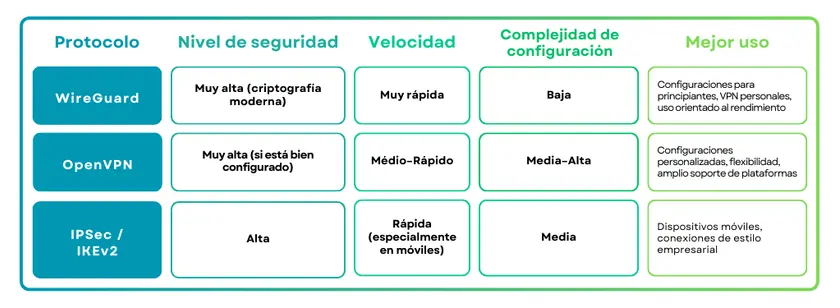
Para la mayoría de personas que crean una VPN por primera vez, WireGuard es el punto de partida más sencillo y práctico. OpenVPN sigue siendo una opción sólida para personalización avanzada, mientras que IPSec suele encajar mejor en casos de uso específicos de estilo empresarial.
También conviene tener en cuenta que los servicios de VPN comerciales suelen admitir varios protocolos y elegir automáticamente la mejor opción — algo que en una VPN DIY tendrás que gestionar manualmente.
Con el protocolo decidido, podemos pasar a la parte práctica: configurar tu VPN paso a paso.
Ahora que ya has elegido un protocolo VPN, es momento de ver el proceso real de configuración. Aunque los comandos y ajustes exactos dependen del protocolo y del proveedor del servidor, el flujo general es sorprendentemente similar.
Empieza eligiendo un proveedor de VPS en la nube y creando un servidor virtual. La mayoría de los principiantes opta por servidores basados en Linux (o incluso un Raspberry Pi), ya que son ligeros, ampliamente compatibles y bien documentados. Asegúrate de que el servidor tenga:
A continuación, instala el software VPN elegido en el servidor. Este software se encarga del cifrado, la autenticación y el enrutamiento del tráfico. Muchos proveedores ofrecen scripts de instalación que simplifican este paso, especialmente para WireGuard y OpenVPN.
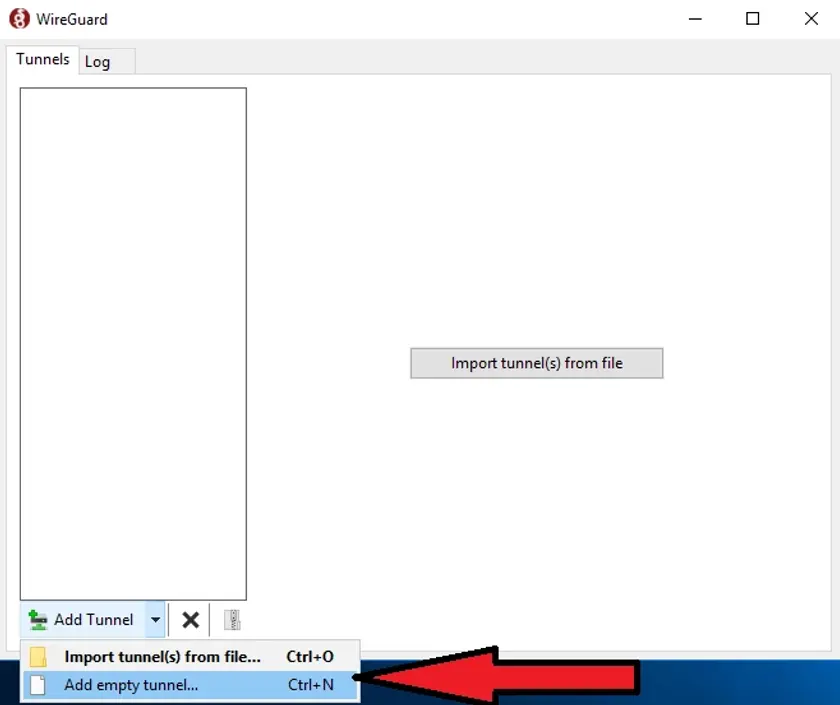
Ejecución y creación de un túnel vacío. Fuente: Introserv
Las VPN utilizan claves criptográficas para autenticar dispositivos. En este paso generarás las claves o certificados del servidor y del cliente. Estas credenciales garantizan que solo los dispositivos autorizados puedan conectarse a la VPN.
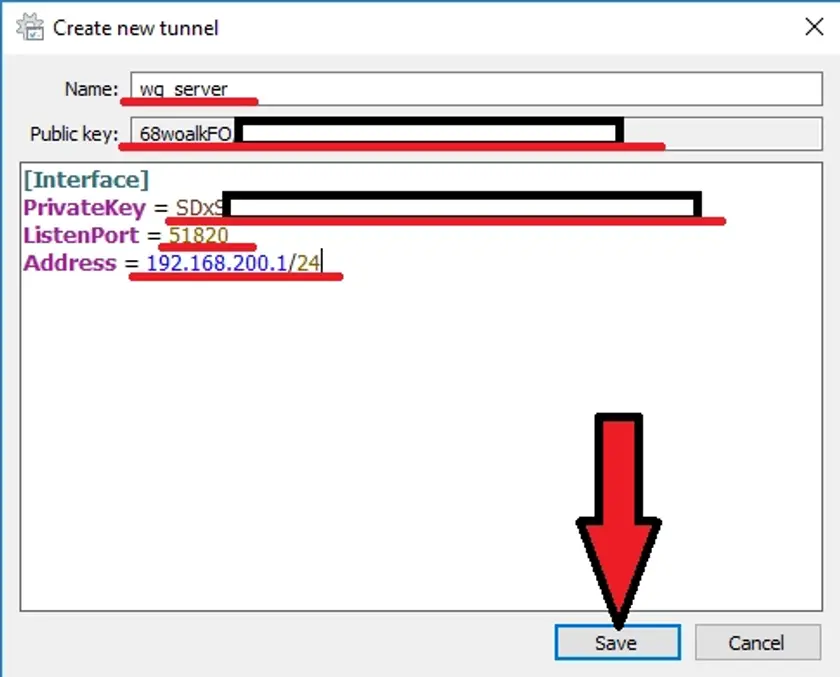
[Interface]
PrivateKey = # clave privada del servidor WireGuard
ListenPort = # puerto en el que WireGuard escucha
Address = # dirección IP deseada del servidor WireGuard
Aquí debes introducir el nombre de la conexión de red y la clave pública del servidor WireGuard (necesaria para la configuración del cliente).
Este paso define cómo fluye el tráfico a través de la VPN y a qué pueden acceder los dispositivos conectados. Incluso en una configuración básica, hay varios parámetros clave que deben definirse.
El siguiente ejemplo utiliza WireGuard como referencia. Los mismos conceptos se aplican a otros protocolos, aunque la sintaxis sea distinta.
Define qué direcciones IP puede usar un cliente a través de la VPN.
AllowedIPs = 10.0.0.2/32
En este ejemplo:
Para tunelizar todo el tráfico de internet:
AllowedIPs = 0.0.0.0/0, ::/0
Esto envía todo el tráfico a través del túnel VPN.
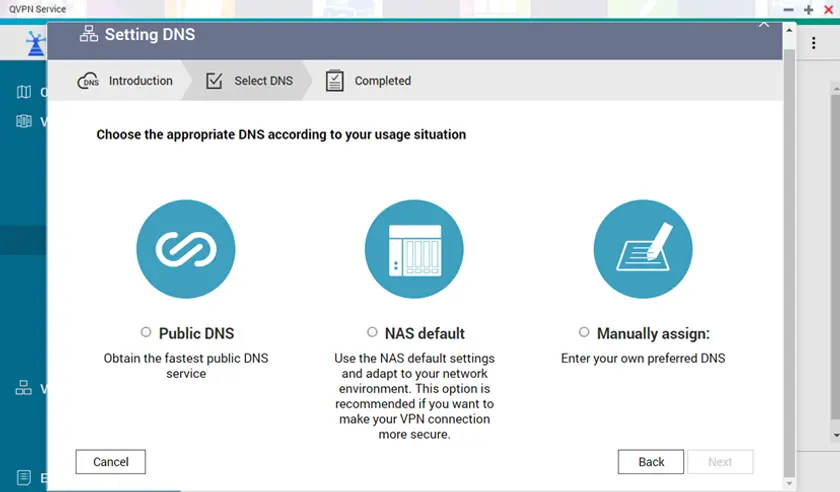
Interfaz DNS Quick Wizard. Fuente: QNAP
La configuración DNS determina qué servidores resuelven los nombres de dominio cuando la VPN está activa.
DNS = 10.0.0.1
Esto obliga al cliente a usar el DNS del servidor VPN y ayuda a evitar fugas de DNS.
Las reglas de enrutamiento indican a dónde debe dirigirse el tráfico una vez que entra en la VPN.
En una configuración básica:
Estas reglas suelen configurarse a nivel del sistema, no solo en el archivo de la VPN.
El puerto de escucha define dónde el servidor VPN acepta conexiones entrantes.
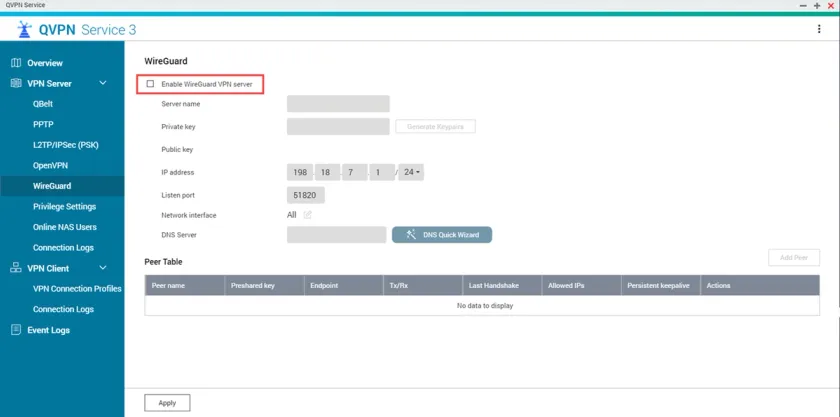
ListenPort = 51820
Este puerto debe:
Las configuraciones por defecto están pensadas para funcionar de forma segura en la mayoría de los casos. Personalizar en exceso desde el inicio aumenta el riesgo de:
Una configuración mínima y funcional siempre es mejor que una compleja que no se entiende del todo.
Una vez configurado el servidor, instala el cliente VPN en tu dispositivo e importa el archivo de configuración o las claves. Al conectarte, tu tráfico se cifrará y se enrutarán a través del servidor VPN.
Por último, comprueba que:
En este punto ya tendrás una VPN operativa.
Esta configuración básica es suficiente para proteger conexiones simples y el acceso remoto. Sin embargo, una VPN funcional no es lo mismo que una VPN reforzada u optimizada para privacidad — y ahí es donde las cosas se vuelven más complejas.
Una vez que tu VPN está en funcionamiento, empieza el trabajo real. Una configuración por defecto puede servir para lo básico, pero rara vez ofrece seguridad o privacidad óptimas. Aquí es donde entran la configuración avanzada y el hardening.
A continuación, se muestran áreas comunes donde se personalizan las VPN DIY, con ejemplos prácticos para ilustrar lo que implica.
Un firewall define qué tráfico puede llegar a tu servidor VPN y qué se bloquea. Sin reglas adecuadas, tu servidor puede exponer servicios innecesarios.
Objetivos habituales:
Enfoque típico:
Solo este paso reduce de forma notable la superficie de ataque del servidor VPN.
Por defecto, una VPN DIY может seguir usando los DNS del ISP, lo que puede filtrar datos de navegación aunque el tráfico esté cifrado.
Opciones comunes:
Qué puede salir mal:
Evitar fugas DNS requiere configuración explícita; no ocurre automáticamente.
Las VPN comerciales suelen incluir un kill switch integrado. En una VPN DIY debes implementarlo manualmente.
Concepto:
Cómo se hace:
Esto es crítico si dependes de la VPN para seguridad en redes públicas.
Muchas VPN DIY registran más datos de lo que se espera sin darse cuenta.
Fuentes comunes de logs:
Incluso logs básicos pueden revelar:
Desactivar o minimizar logs requiere configuración cuidadosa y monitoreo constante, y los errores aquí son frecuentes.
A continuación se muestra una configuración simplificada de WireGuard para ilustrar cómo se ven los setups avanzados:
[Interface]
PrivateKey = <server_private_key>
Address = 10.0.0.1/24 ListenPort = 51820
SaveConfig = false
[Peer]
PublicKey = <client_public_key>
AllowedIPs = 10.0.0.2/32
Incluso este ejemplo mínimo asume:
A medida que el setup crece (más clientes, más dispositivos), la complejidad aumenta rápidamente.
Cada personalización añade:
Aquí es donde muchas VPN DIY se vuelven frágiles: funcionan bien hasta que algo cambia.
Para que tu VPN sea segura y fiable, necesita mantenimiento constante. A diferencia de los servicios VPN comerciales, una VPN autoalojada no tiene un equipo de seguridad automatizado detrás: todo depende de lo bien y de lo consistentemente que la gestiones.
El software VPN, los sistemas operativos y las bibliotecas de cifrado se actualizan continuamente para corregir vulnerabilidades.
Si tu servidor usa componentes desactualizados:
Una VPN segura requiere actualizaciones frecuentes: no solo durante la instalación, sino de forma continua.
Las claves de autenticación y los certificados son la base de la seguridad de una VPN. Con el tiempo, las claves pueden:
La buena práctica incluye rotar claves periódicamente, revocar accesos de dispositivos no usados y almacenar las claves de forma segura (nunca en texto plano). Son pasos fáciles de pasar por alto, y a menudo ocurre.
Una VPN DIY tiene un único punto de fallo. Si el servidor cae, la VPN deja de funcionar. Tú eres responsable de:
Sin monitorización activa, los fallos pueden pasar desapercibidos hasta que realmente necesites la VPN.
Una VPN protege el tráfico, no el servidor en sí. Otras responsabilidades incluyen restringir el acceso SSH, usar autenticación fuerte y limitar puertos abiertos, además de:
Si el servidor se ve comprometido, el túnel VPN deja de importar y los atacantes obtienen acceso directo.
Las VPN DIY suelen generar logs por defecto. Estos logs pueden incluir:
Incluso logs mínimos pueden crear riesgos de privacidad si se almacenan mal o si terceros acceden a ellos. Desactivar o minimizar logs requiere configuración cuidadosa y verificación continua.
Lo que al principio parece una “configuración de una sola vez” se convierte rápidamente en:
Para usuarios con experiencia técnica, puede ser aceptable. Para la mayoría, se convierte en una carga a largo plazo.
En este punto, la diferencia entre crear tu propia VPN y usar un servicio comercial se vuelve evidente. Aunque ambos enfoques se basan en las mismas tecnologías, la experiencia (y el resultado) es muy distinta.
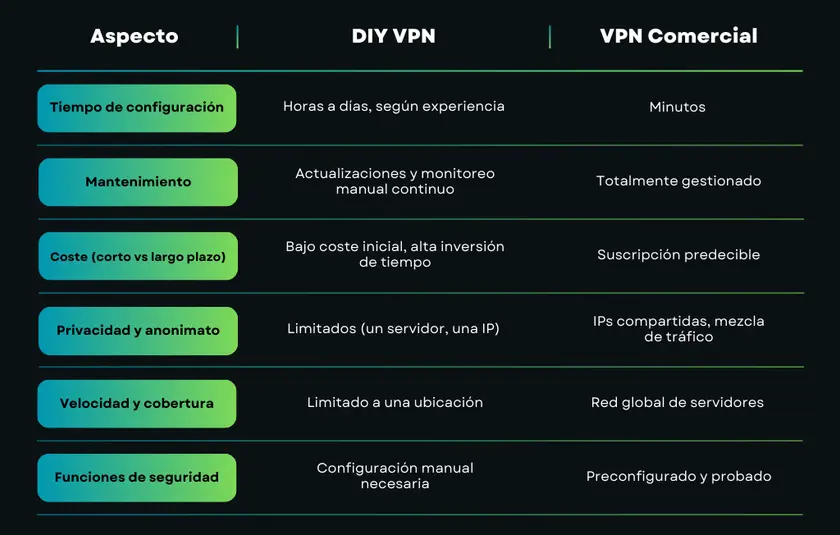
Una VPN autoalojada puede ser una buena opción si:
Las VPN DIY funcionan mejor como herramientas, no como soluciones completas de privacidad.
Una VPN comercial suele ser mejor si:
Para la mayoría, la simplicidad y la fiabilidad pesan más que el control de bajo nivel.
Los servicios comerciales resuelven los mismos problemas que una VPN DIY, pero sin los costes ocultos.
Ofrecen:
En lugar de mantener un único servidor, el usuario obtiene acceso a una infraestructura profesional pensada para escala, redundancia y privacidad.
Esto no hace obsoletas las VPN DIY, pero explica por qué muchos empiezan con una VPN personal y luego cambian a una solución comercial.
En la sección final, resumiremos cuándo tiene sentido crear tu propia VPN y cuándo elegir el proveedor adecuado es la opción más inteligente.
Montar tu propia VPN puede enseñarte mucho, pero la privacidad no se mide por lo complejo que sea el setup. Se mide por si tus datos están protegidos, tu conexión es segura y tu actividad online se mantiene privada — de forma constante y sin esfuerzo.
Si tu objetivo es aprender, experimentar o proteger una sola red, una VPN DIY puede valer la pena.
Si tu objetivo es privacidad fuerte, acceso global y seguridad fiable sin dolores de cabeza, Guru VPN ofrece protección experta desde el primer día.
Guru VPN está diseñado para ofrecer los beneficios que la gente busca en una VPN sin obligarlos a convertirse en administradores de sistemas.