 EN
EN BR
BR DE
DE ES
ES FR
FR RU
RU ID
ID TR
TR IT
IT JP
JP SA
SA VN
VN TH
TH KR
KR
How to Use a VPN: A Complete Guide for Beginners

 Key takeaways
- Learn how to set up and use a VPN on Windows, macOS, Android, and iPhone.
- Understand how VPN encryption protects your data and hides your IP address.
- Discover when using a VPN provides the greatest privacy and security benefits.
- Follow simple steps to choose the right server and verify your VPN connection.
- See how Guru VPN makes secure browsing easy with fast servers, strong encryption, and an intuitive app.
You don't need to be a cybersecurity expert to learn how to use a VPN. Today's VPN apps are designed to make secure browsing as simple as installing an app, choosing a server, and connecting with a single click. Whether you're using public Wi-Fi, accessing sensitive accounts, working remotely, shopping online, or simply browsing the web, a VPN helps protect your internet traffic from tracking, cyber threats, and unauthorized access.
A Virtual Private Network (VPN) creates an encrypted connection between your device and a secure server. Instead of sending your internet traffic directly to websites, it routes everything through an encrypted tunnel, helping keep your personal information private and making it much harder for third parties to monitor your online activity. Learning how to use VPN technology doesn't require technical experience — modern VPN applications are built for quick installation and easy everyday use.
Solutions like Guru VPN make online privacy accessible to everyone. With an intuitive interface, fast servers in multiple countries, and strong encryption, Guru VPN allows you to secure your connection in just a few clicks. Whether you're browsing at home, traveling abroad, or working from a café, you can stay protected without changing the way you use the internet.
This guide explains everything you need to know about using a VPN, from understanding how VPN technology works to choosing the right server and configuring your connection on different devices. You'll also learn how to avoid common mistakes, improve VPN performance, and make the most of your online privacy every day. By the end of this guide, you'll be ready to use a VPN confidently, no matter where you connect.
Key Takeaways
- Learn how to set up and use a VPN on Windows, macOS, Android, and iPhone.
- Understand how VPN encryption protects your data and hides your IP address.
- Discover when using a VPN provides the greatest privacy and security benefits.
- Follow simple steps to choose the right server and verify your VPN connection.
- See how Guru VPN makes secure browsing easy with fast servers, strong encryption, and an intuitive app.
What Is a VPN and How Does It Work?
What Is a VPN?
A Virtual Private Network (VPN) is a service that creates a secure, encrypted connection between your device and the internet. Instead of sending your data directly through your internet service provider, a VPN routes your traffic through a remote VPN server. This process helps protect sensitive information, hides your real IP address, and makes your online activity more difficult for third parties to monitor.
The primary purpose of a VPN is to improve your online privacy and security. Whether you're browsing the web, accessing your email, making online purchases, or connecting to public Wi-Fi, a VPN reduces the risk of unauthorized access to your data. It also allows you to connect through servers in different countries, making it easier to access websites, apps, and online services while traveling.
Today, using a VPN is no longer limited to businesses or cybersecurity professionals. Modern VPN applications are designed for everyday users and can be activated with just a few clicks, providing reliable protection without requiring technical knowledge.
How Does a VPN Work?
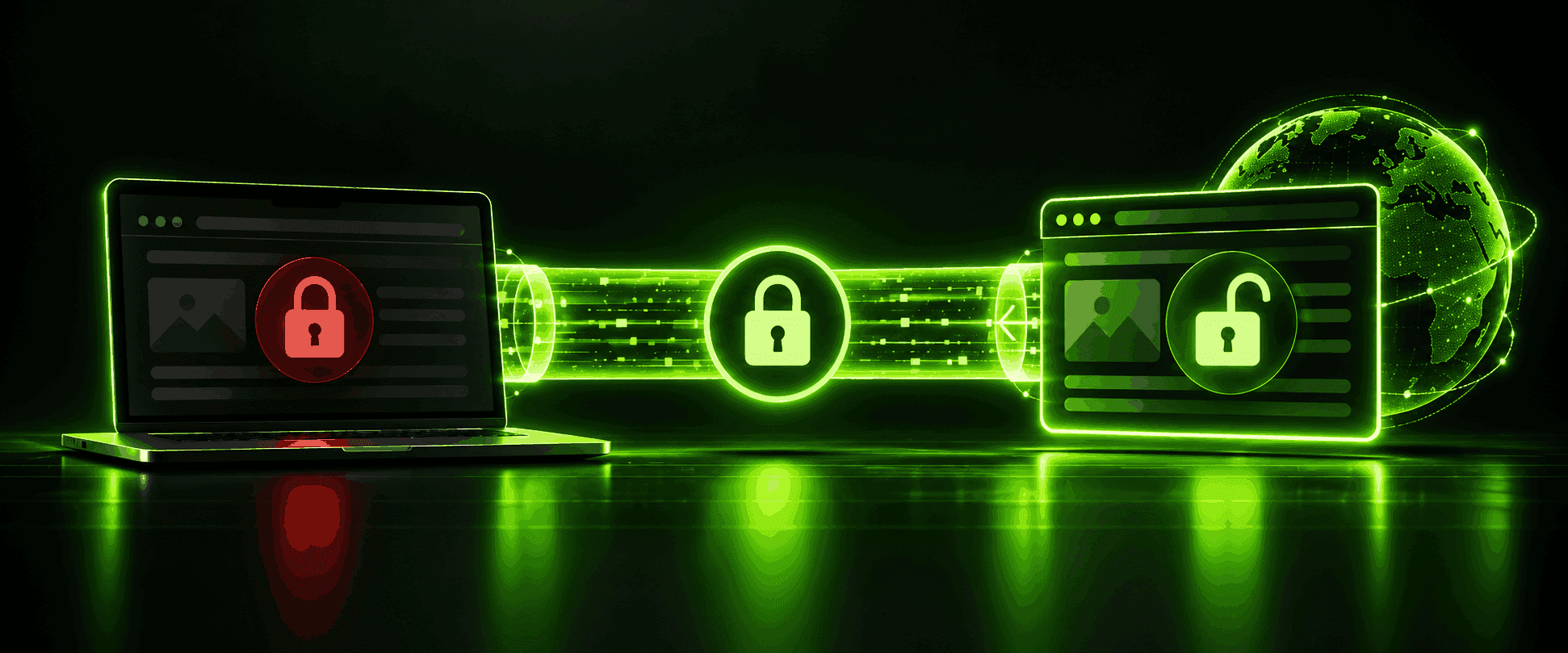
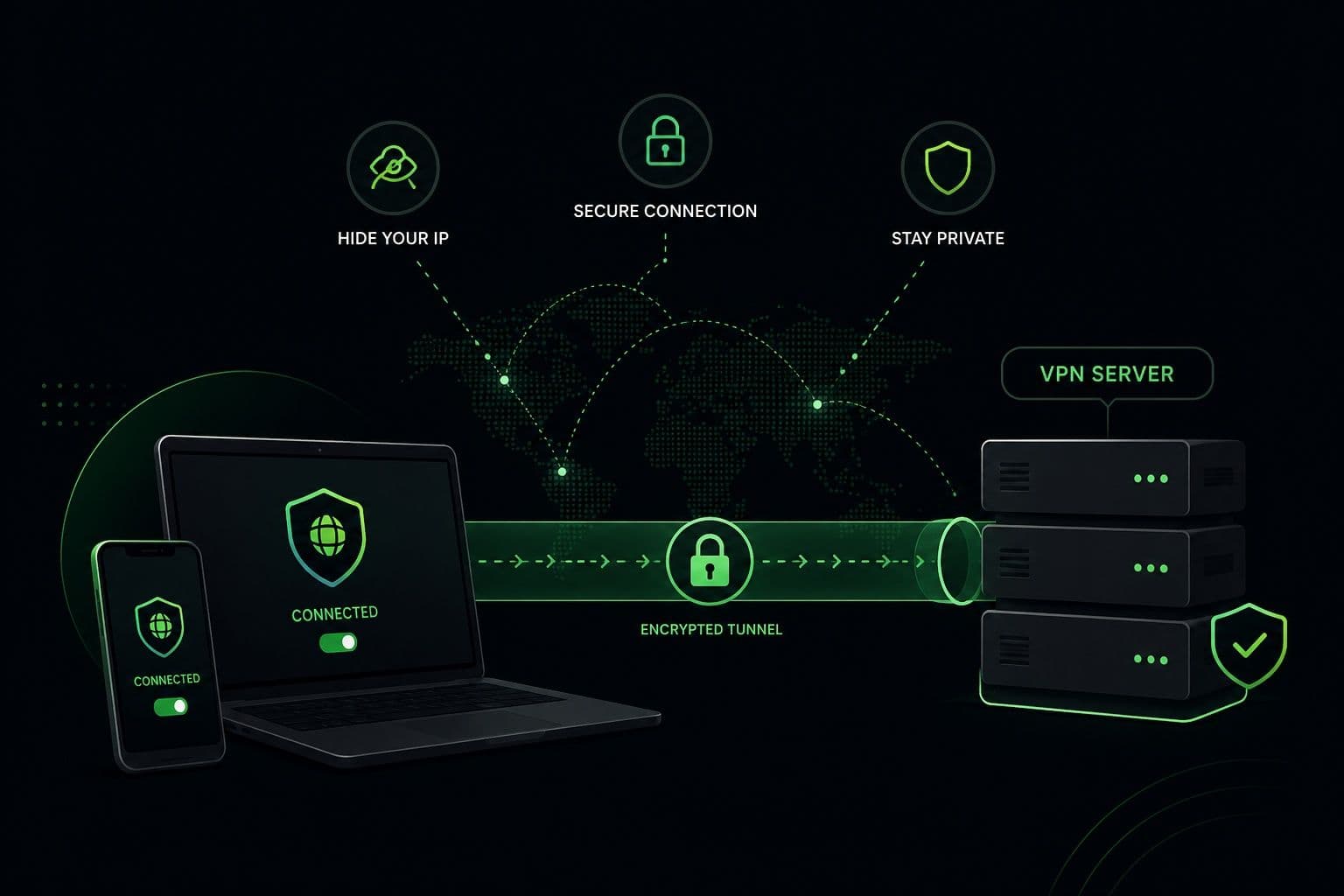
When you connect to a VPN, your internet traffic is encrypted before it leaves your device. Encryption converts your data into unreadable code, ensuring that even if someone intercepts your connection, they cannot view the information being transmitted.
The encrypted data then travels through a secure tunnel to a VPN server. This tunnel protects your connection from eavesdropping, especially when you're using public or unsecured Wi-Fi networks.
Once your traffic reaches the VPN server, it is sent to the website or online service you're accessing. Because the request comes from the VPN server rather than your own device, your IP address is masked, making it appear as though you're browsing from the server's location instead of your actual one.
VPN servers are available in multiple countries, allowing you to choose the location that best matches your needs. A nearby server typically provides the fastest speeds, while a server in another country can help you access region-specific content or services. With providers like Guru VPN , switching between servers takes only a few seconds, making it easy to balance speed, privacy, and accessibility.
| Feature | Without a VPN | With a VPN |
|---|---|---|
Internet traffic | Travels directly through your ISP | Travels through an encrypted VPN tunnel |
Data encryption | Usually not encrypted by default | Encrypted before leaving your device |
IP address | Visible to websites and online services | Hidden behind the VPN server's IP address |
Public Wi-Fi security | More vulnerable to interception | Protected with encrypted traffic |
Online privacy | Easier for third parties to track | Improved privacy through IP masking and encryption |
Server location | Your physical location | Your selected VPN server location |
How to Use a VPN: Step-by-Step Guide
Now that you understand how VPN technology works and why it matters, it's time to learn how to use a VPN in practice. Modern VPN applications are designed to make secure browsing simple, so the setup process usually takes only a few minutes. The steps below apply to most VPN services, although the interface may vary slightly depending on the provider.
1. Download and Install a VPN
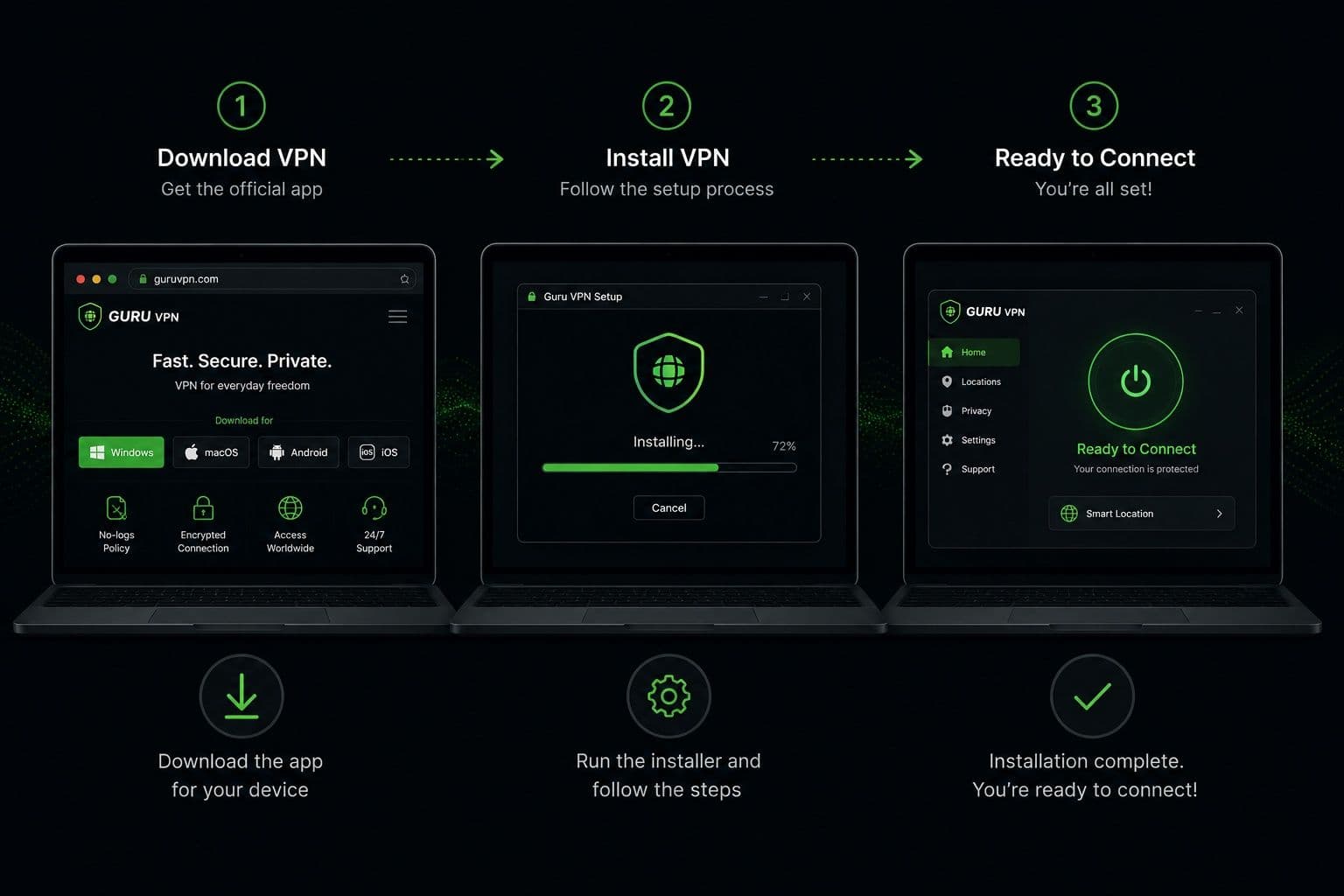
The first step in using a VPN is choosing a trusted provider with strong security features, reliable performance, and an easy-to-use application. Look for a VPN that offers modern encryption, a no-logs policy, a large server network, and apps for all your devices.
Once you've selected a provider, visit its official website or your device's app store to download the application. For example, you can download Guru VPN directly from the official Download page.
After downloading the installer, follow the on-screen instructions to complete the installation. The process is similar to installing any other application and usually requires only a few clicks.
When the installation finishes, launch the app and prepare to sign in.
2. Create an Account or Sign In
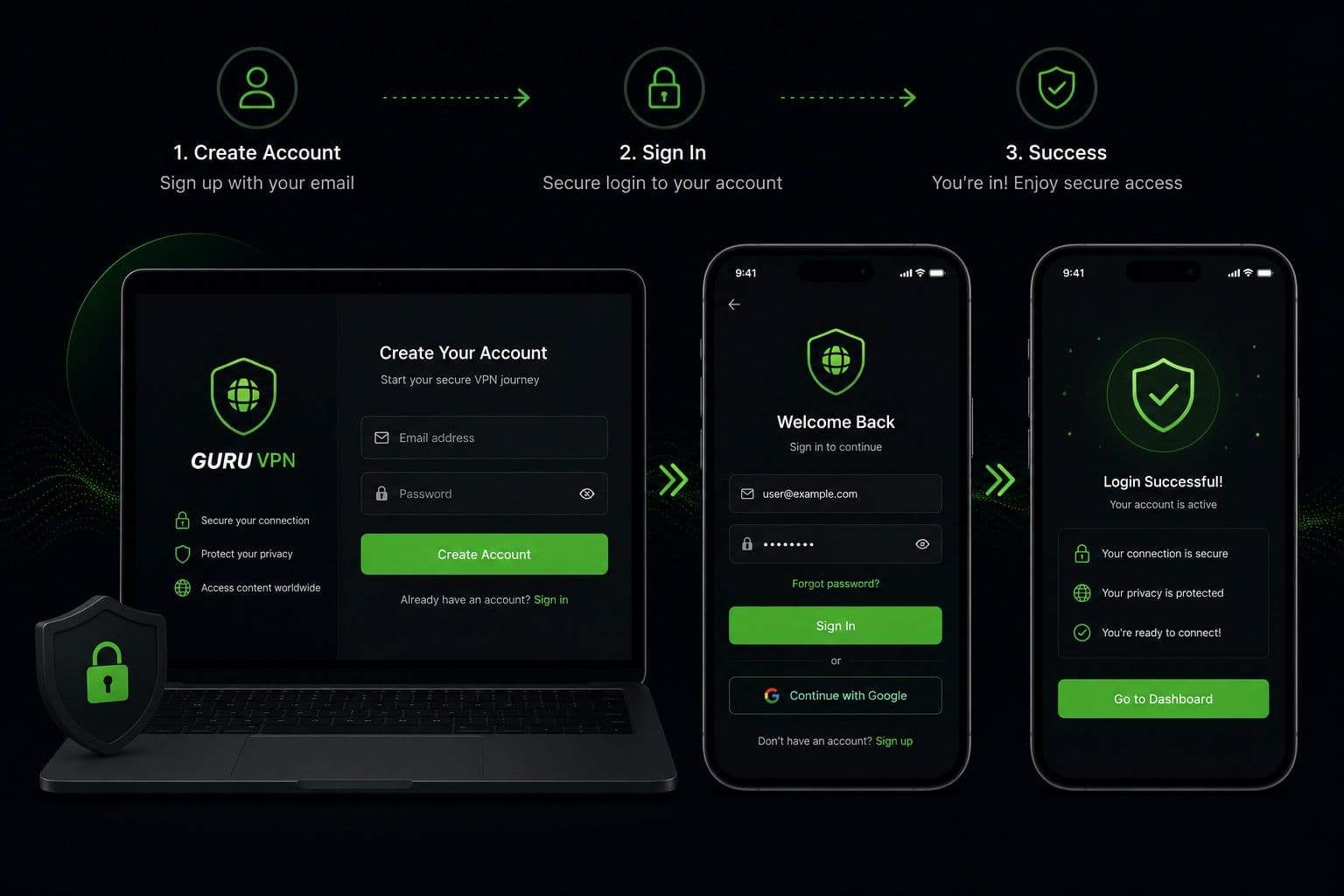
Most VPN providers require an account before you can connect to their servers.
If you're a new user, create an account by entering your email address and choosing a subscription plan. Existing users can simply sign in using their credentials.
Many VPN apps, including Guru VPN , guide you through the setup process automatically, making it easy even if you've never used a VPN before. After logging in, you'll typically see the main dashboard with a list of available servers, connection status, and security settings.
Before connecting, it's worth taking a moment to review available features such as Auto-Connect, Kill Switch, or your preferred VPN protocol. Although the default settings work well for most users, becoming familiar with these options will help you get the best experience over time.
3. Choose the Right VPN Server
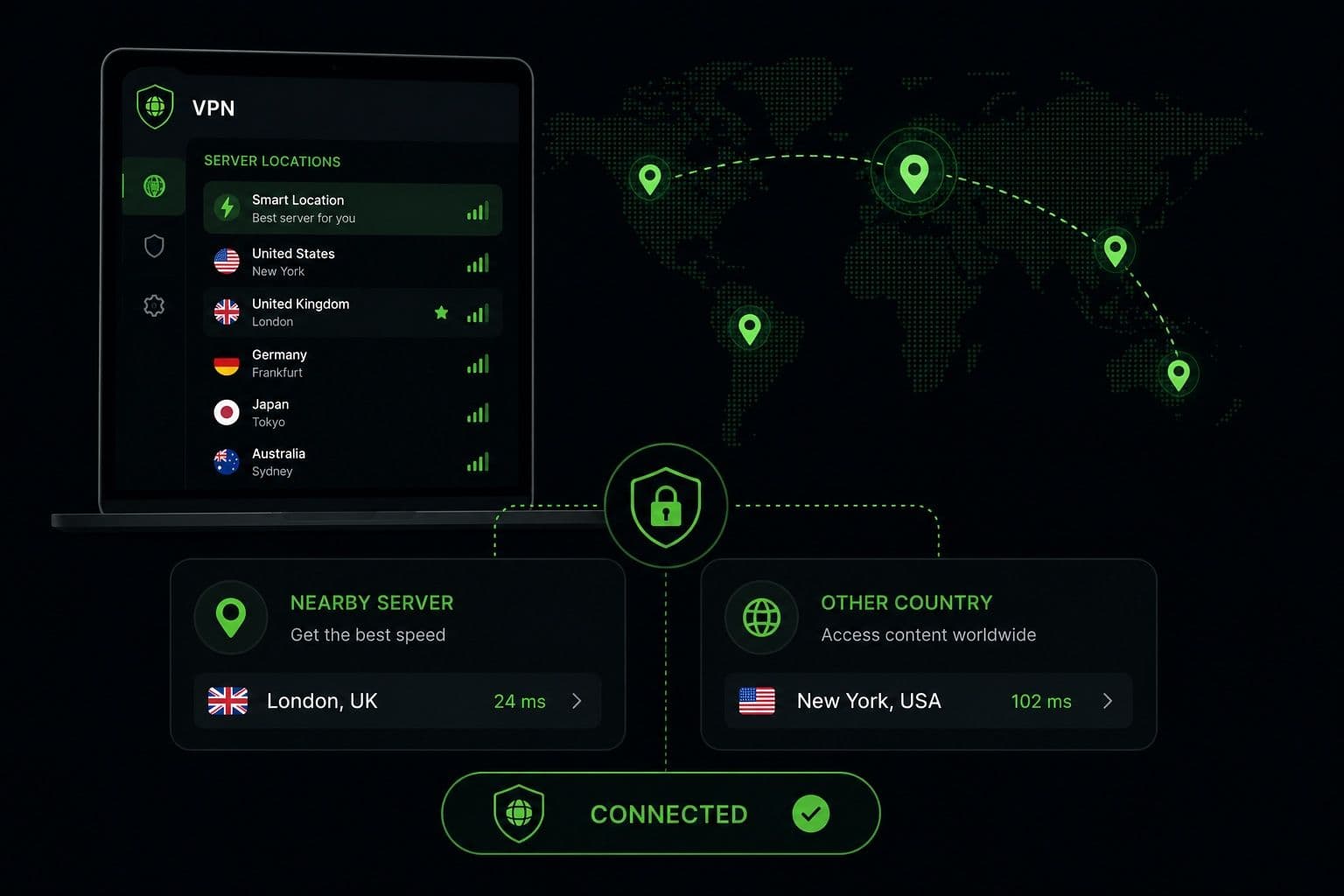
Selecting the right server is one of the most important parts of learning how to use VPN effectively.
For everyday browsing, online shopping, video calls, and general security, choose the server closest to your physical location. Nearby servers usually provide the fastest speeds and the lowest latency because your traffic travels a shorter distance.
If you need to access region-specific content or online services while traveling, simply choose a server in the appropriate country. A VPN will assign you an IP address from that location while keeping your connection encrypted.
Guru VPN offers servers in more than 49 countries, allowing you to select the location that best matches your needs. Whether you prioritize speed or location, you can easily browse the available servers from the app or explore all the server locations.
4. Connect to the VPN
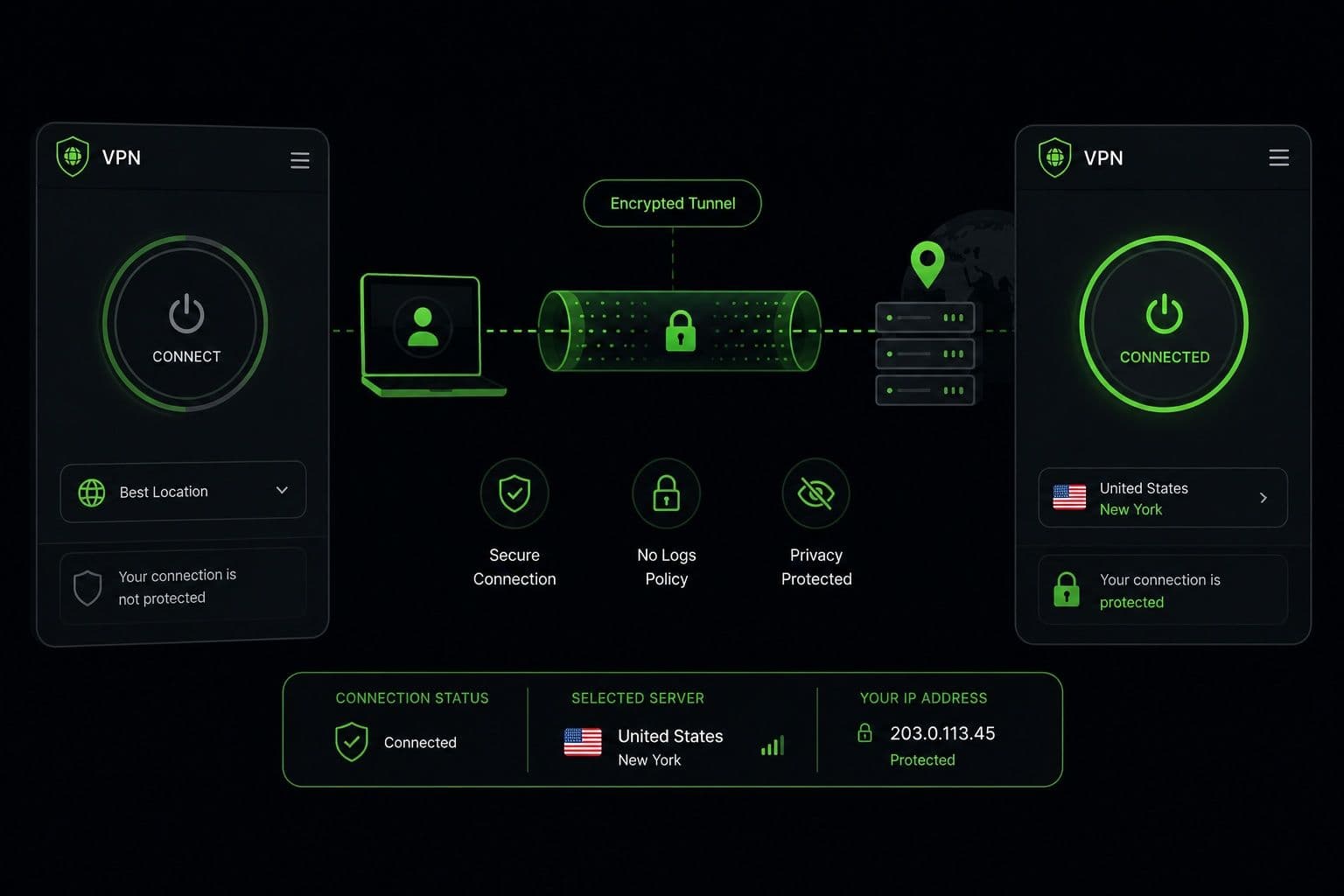
Once you've selected a server, connecting is straightforward.
Simply press the Connect button within the application. Most VPNs establish a secure connection in just a few seconds.
After the connection is complete, the app will usually display a confirmation message or a green connection indicator. Some applications also show your new IP address, the connected server location, and the duration of your session.
From this point forward, your internet traffic is encrypted and routed through the selected VPN server. You can continue browsing, streaming, working, or shopping online exactly as you normally would, but with an additional layer of privacy and security protecting your connection.
5. Check That the VPN Is Working
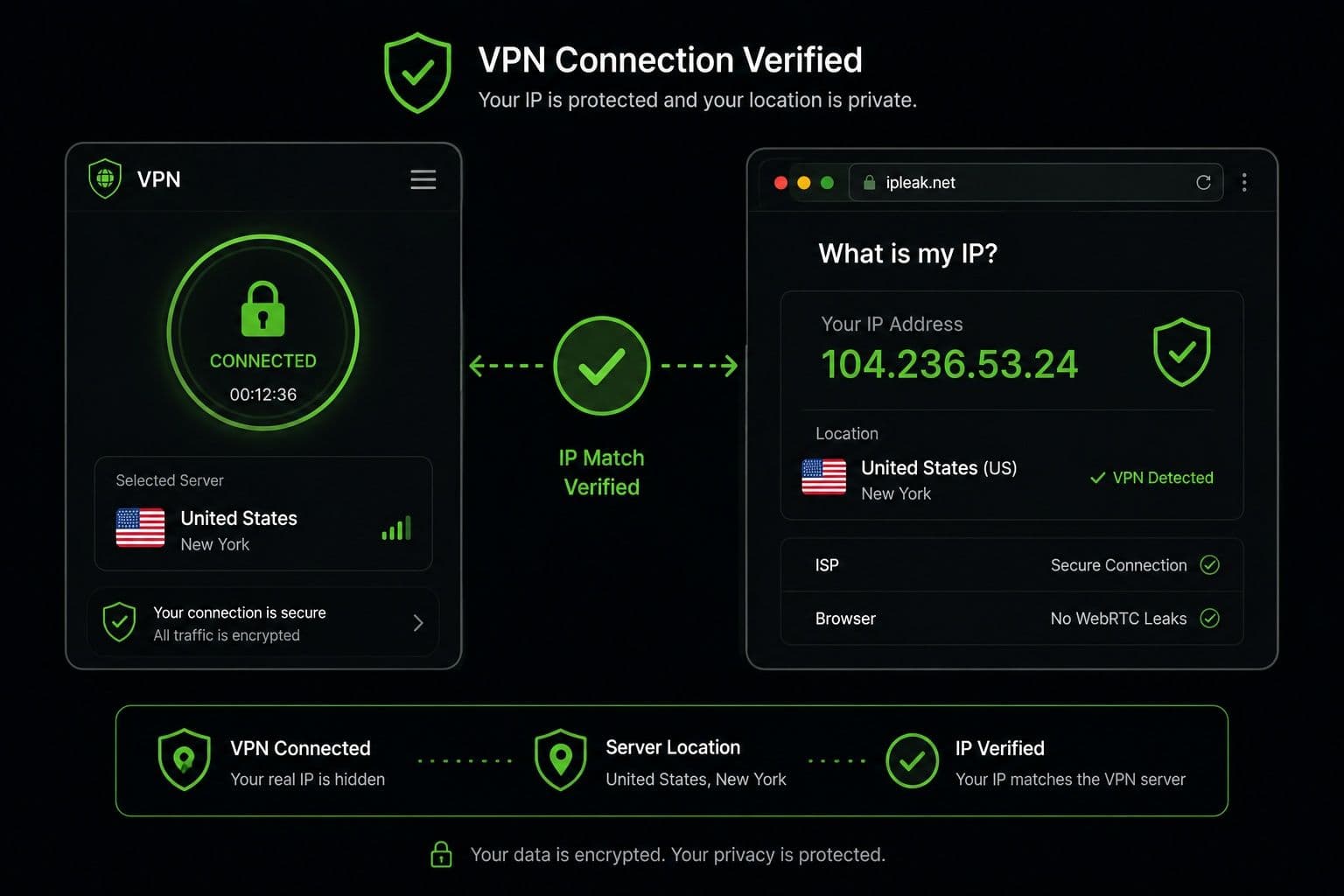
Although VPN applications provide a connection indicator, it's good practice to verify that everything is working correctly.
The easiest way is to check whether your public IP address has changed. If your IP now matches the country of the VPN server you selected, the connection is active.
You can also confirm that your internet connection remains stable by opening several websites or streaming a short video. If pages load normally and your VPN shows an active connection, you're ready to browse securely.
Some advanced users also perform DNS or WebRTC leak tests to verify that their real identity isn't exposed. While this isn't necessary for everyday use, it can provide additional reassurance when handling sensitive information.
6. Disconnect or Switch Servers
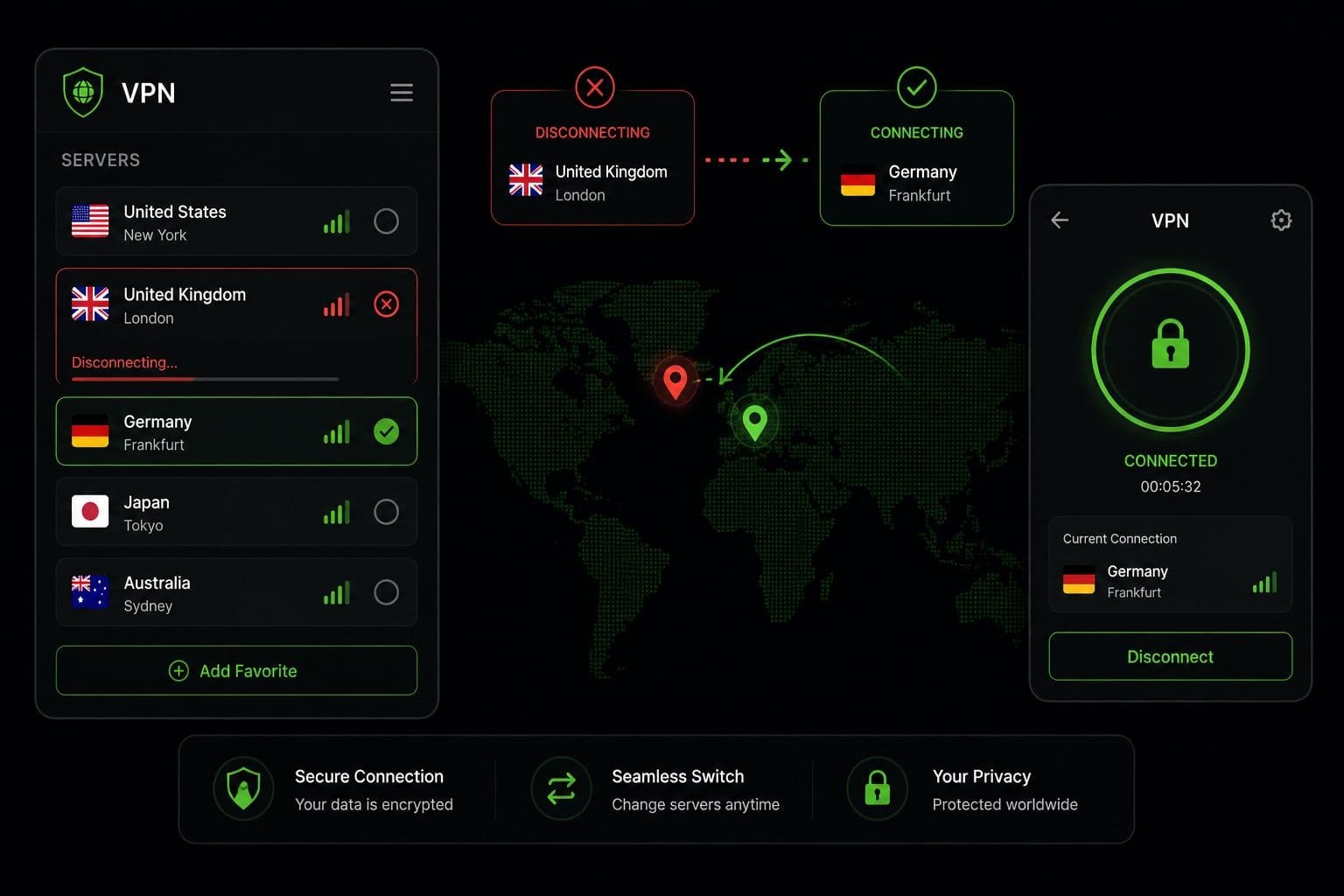
There may be times when you want to disconnect from your VPN or change servers.
If you no longer need encrypted protection — for example, when troubleshooting a network issue — you can disconnect directly from the VPN application by selecting Disconnect. The process takes only a few seconds, and your internet connection will return to its normal route.
In many cases, however, switching servers is a better option than disconnecting completely. If a server becomes congested or you need a different virtual location, simply select another server from the list and reconnect. Most VPN apps perform this transition automatically without requiring you to close the application.
Guru VPN makes switching servers particularly simple thanks to its intuitive interface and optimized routing. Whether you're looking for the fastest available connection, a server closer to your location, or access to content from another country, changing servers requires only a few taps.
Once you've completed these steps, you'll know how to use a VPN confidently in almost any situation. With regular VPN usage, protecting your online privacy becomes as simple as opening the app and connecting before you go online.
How to Use a VPN on Different Devices
One of the biggest advantages of modern VPN services is their cross-platform compatibility. The setup process is very similar across different operating systems. While each platform has its own interface and installation method, the basic workflow — installing the app, signing in, choosing a server, and connecting — remains the same.
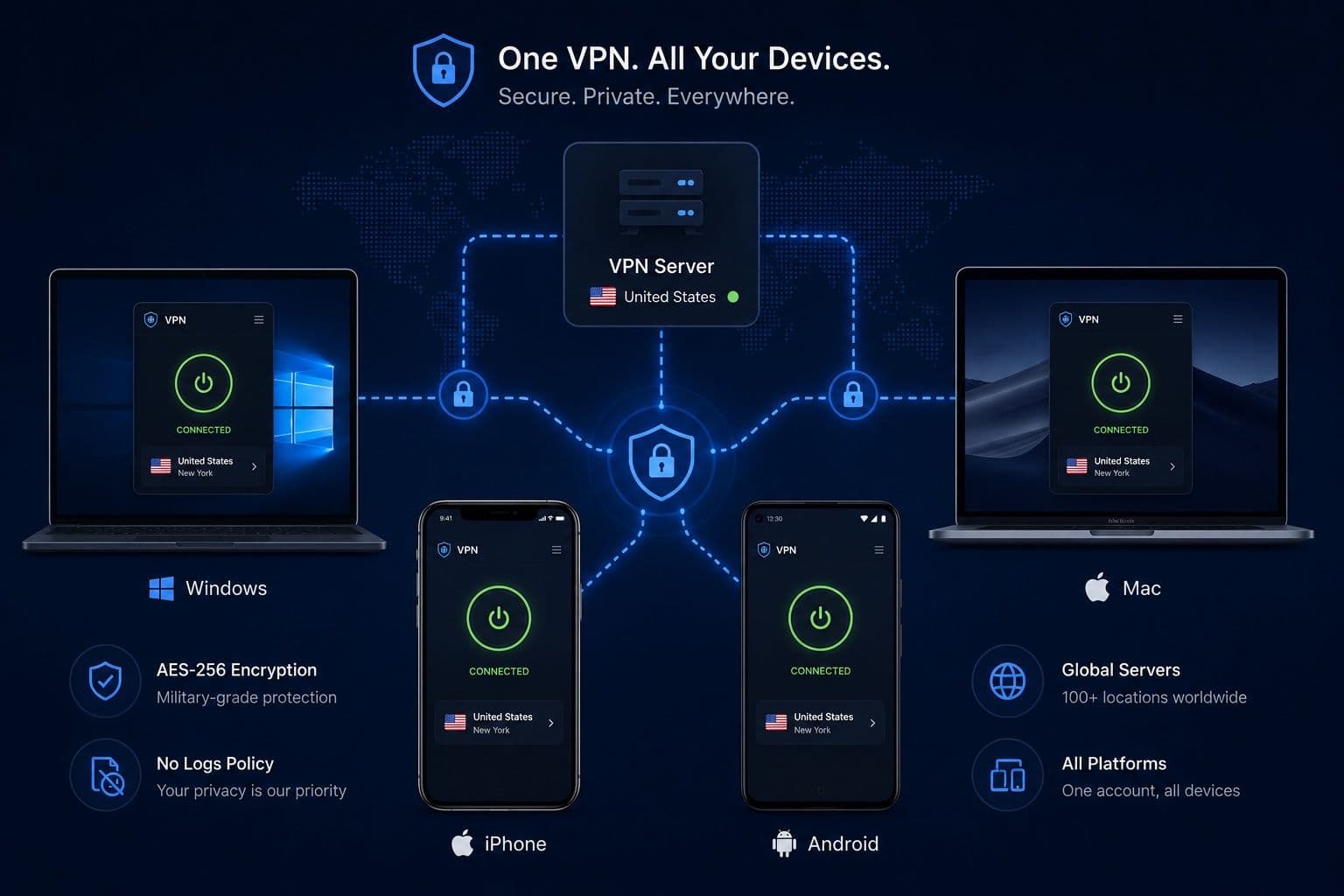
Windows: How to Use a VPN on Your PC
Windows offers the widest range of VPN applications, making it one of the easiest platforms for using a VPN.
Start by downloading the VPN client from the provider's official website. After installation, sign in to your account and grant any permissions requested by the application. From the main dashboard, choose a server location and click Connect. Within a few seconds, your internet traffic will be encrypted and routed through the selected VPN server.
Windows users can also customize additional settings, such as enabling Auto-Connect when the computer starts, activating a Kill Switch, or selecting a preferred VPN protocol. These options help maintain a secure connection without requiring manual configuration each time you go online.
macOS: Using a VPN on Apple Computers
The process for using VPN on macOS is just as straightforward. Download the VPN app from the provider's website, install it, and sign in using your account credentials.
After logging in, select your preferred server and connect. macOS may ask for permission to add VPN configurations during the initial setup. This is a standard security measure that allows the application to establish encrypted connections.
Many VPN apps also integrate smoothly with macOS, offering features such as automatic reconnection, favorite server lists, and quick access from the menu bar. Once configured, protecting your internet connection requires only a single click.
iPhone: Secure Your Connection on the Go
The process is designed to be quick and user-friendly.
Download the VPN application from the App Store, sign in, and allow iOS to create a VPN configuration when prompted. This permission is required only once. After that, simply choose a server and tap Connect.
On iPhone, VPN apps can continue protecting your connection while you switch between Wi-Fi and mobile data. Many providers also include Auto-Connect features that automatically activate the VPN whenever you join an unsecured wireless network, helping protect your data without requiring manual action.
Android: Flexible VPN Protection
Android devices offer a similar experience while providing additional flexibility for advanced users.
Install the VPN app from Google Play, sign in to your account, and grant the requested VPN permissions. Once inside the app, choose a server and connect. Like iOS, Android displays a VPN icon in the status bar to confirm that your encrypted connection is active.
Depending on your device and Android version, you may also have access to advanced settings such as Always-on VPN, Split Tunneling, or custom protocol selection. These features allow you to tailor a VPN to your browsing habits while maintaining strong privacy and performance.
Regardless of which device you use, Guru VPN provides a consistent experience across Windows, macOS, iPhone, and Android. Its intuitive interface, fast server selection, and synchronized account support make it easy to stay protected whether you're working at your desk or browsing on the go.
Common VPN Mistakes to Avoid
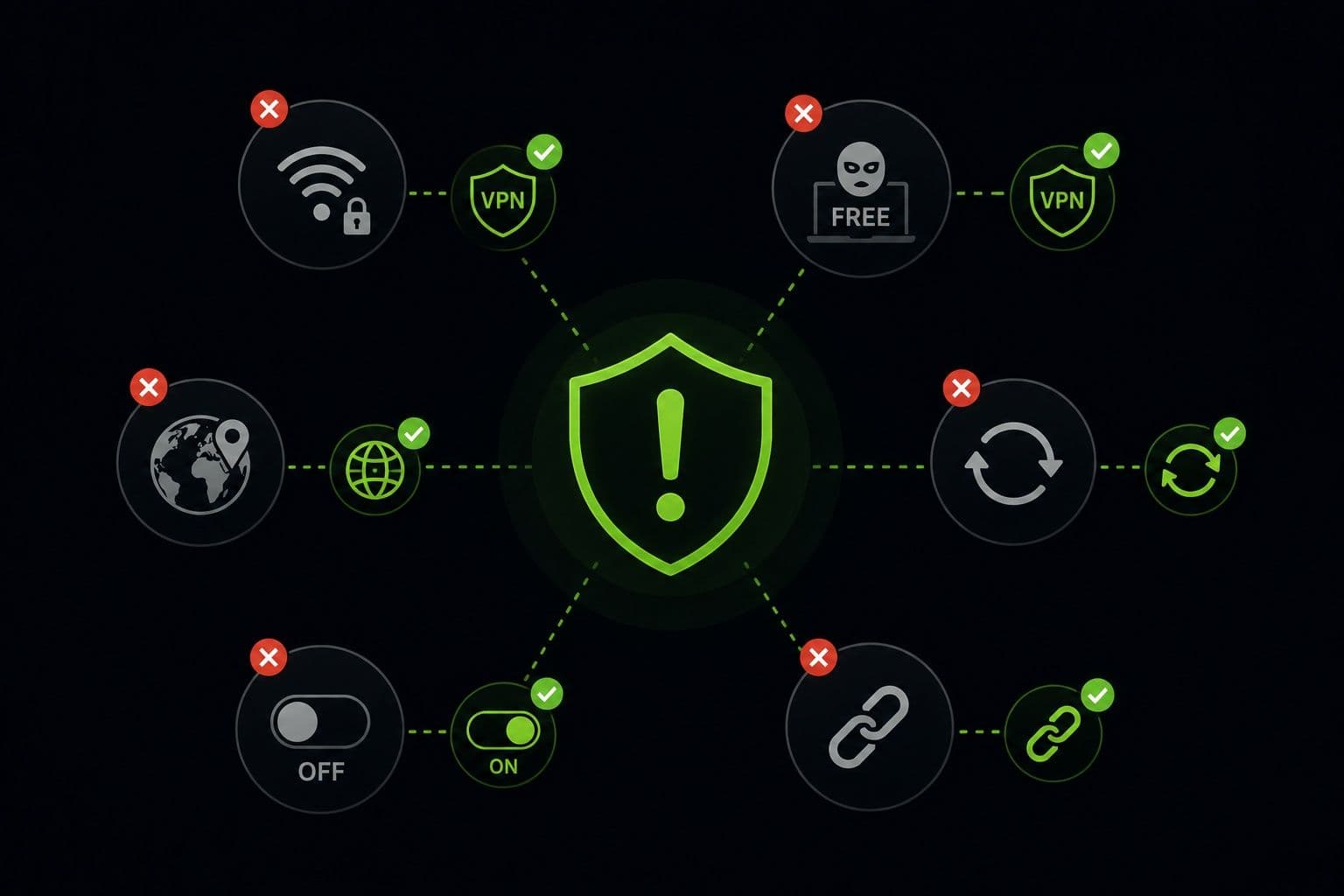
A VPN is an effective privacy and security tool, but getting the most out of it depends on how you use it. Even small oversights can reduce performance or leave your connection less protected than expected. Avoiding the following common mistakes will help you enjoy a faster, safer, and more reliable VPN experience.
Connection Mistakes
One of the most common mistakes is simply forgetting to turn on the VPN before browsing the internet. This is especially important when connecting to public Wi-Fi networks, accessing sensitive accounts, or making online purchases. Enabling features such as Auto-Connect can help ensure your VPN is always active when you need it.
Another frequent issue is selecting a server that's much farther away than necessary. While connecting to a server in another country may be useful for accessing location-specific content, a nearby server is usually the better choice for everyday browsing. Shorter distances generally result in lower latency, faster speeds, and a more stable connection.
Security Mistakes
Keeping your VPN application up to date is essential. Updates often include important security patches, performance improvements, and compatibility fixes. Running an outdated version may leave you without the latest protections or features.
Some users also disable security features such as Kill Switch, DNS leak protection, or Auto-Connect without fully understanding their purpose. While these settings may seem optional, they provide additional layers of protection if your VPN connection is interrupted or your network changes unexpectedly.
Finally, avoid assuming that every VPN offers the same level of privacy. Security standards, encryption methods, logging policies, and server infrastructure vary significantly between providers. Choosing a trusted VPN with transparent privacy practices, modern encryption, and a verified no-logs policy is just as important as using a VPN in the first place.
Why Choose Guru VPN
Choosing the right VPN is about more than just encrypting your internet connection. You also need a service that is fast, reliable, easy to use, and designed to meet your everyday browsing needs. Guru VPN combines strong security with high performance, making it a practical choice for beginners and experienced users alike.
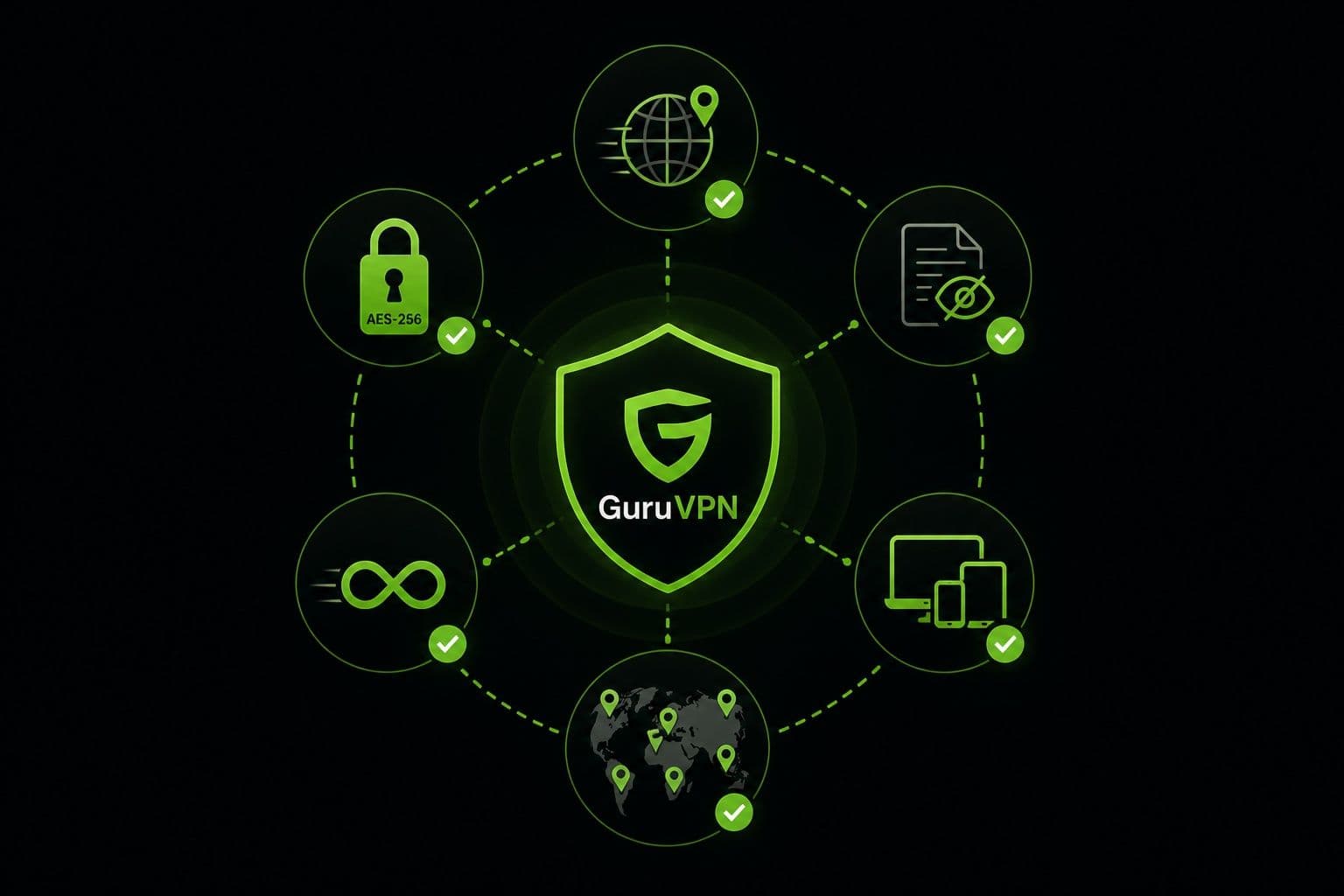
| Key Features | Benefit |
|---|---|
Easy installation and intuitive interface | Get started in minutes with a simple setup process and user-friendly app design. |
Fast global servers | Enjoy smooth streaming, responsive gaming, and fast downloads with reliable server performance. |
Strong encryption | Protect your personal information while browsing, shopping, banking, and using public Wi-Fi. |
Strict no-logs policy | Keep your online activity private without storing browsing history or connection logs. |
Cross-platform compatibility | Protect Windows, macOS, Android, and iPhone devices with one easy-to-use application. |
Access to websites, apps, and online services | Browse without unnecessary restrictions wherever you are. |
Global server network in 49+ countries | Choose from a wide range of locations for better speeds, lower latency, and broader content access. |
Unlimited bandwidth | Stream, browse, game, and download without speed throttling or data limits. |
How Guru VPN Solves Common VPN Challenges
A VPN should simplify online security rather than make it more complicated. Guru VPN is built to remove the everyday barriers that stop people from staying protected, offering a setup process that takes only a few minutes and an intuitive interface that lets you connect to a secure server with a single click.
- Easy setup — Installation takes just a few minutes, making the service accessible even for first‑time users.
- One‑click connection — A simple interface ensures you can instantly connect to a secure server without navigating complex menus.
- High‑speed performance — Optimized routing and fast global servers deliver stable connections for HD/4K streaming, gaming, video calls, and everyday browsing.
- Smart server selection — Automatic location matching helps reduce latency and improve reliability.
- Advanced privacy protection — Modern encryption, IP masking, DNS leak protection, and other security technologies work together to safeguard sensitive information.
- Secure access anywhere — Whether traveling or using public Wi‑Fi, Guru VPN helps you access websites and apps securely from almost anywhere.
- Multi‑device support — Protect up to four devices simultaneously under one account.
- 24/7 support — Round‑the‑clock assistance ensures technical issues are resolved quickly.
Behind the scenes, Guru VPN combines technologies like WireGuard®, ChaCha20 encryption, optimized routing, leak protection, and MultiHop to deliver faster speeds, stronger privacy, and a more reliable VPN experience for every type of user.
Best Practices for Using a VPN Every Day
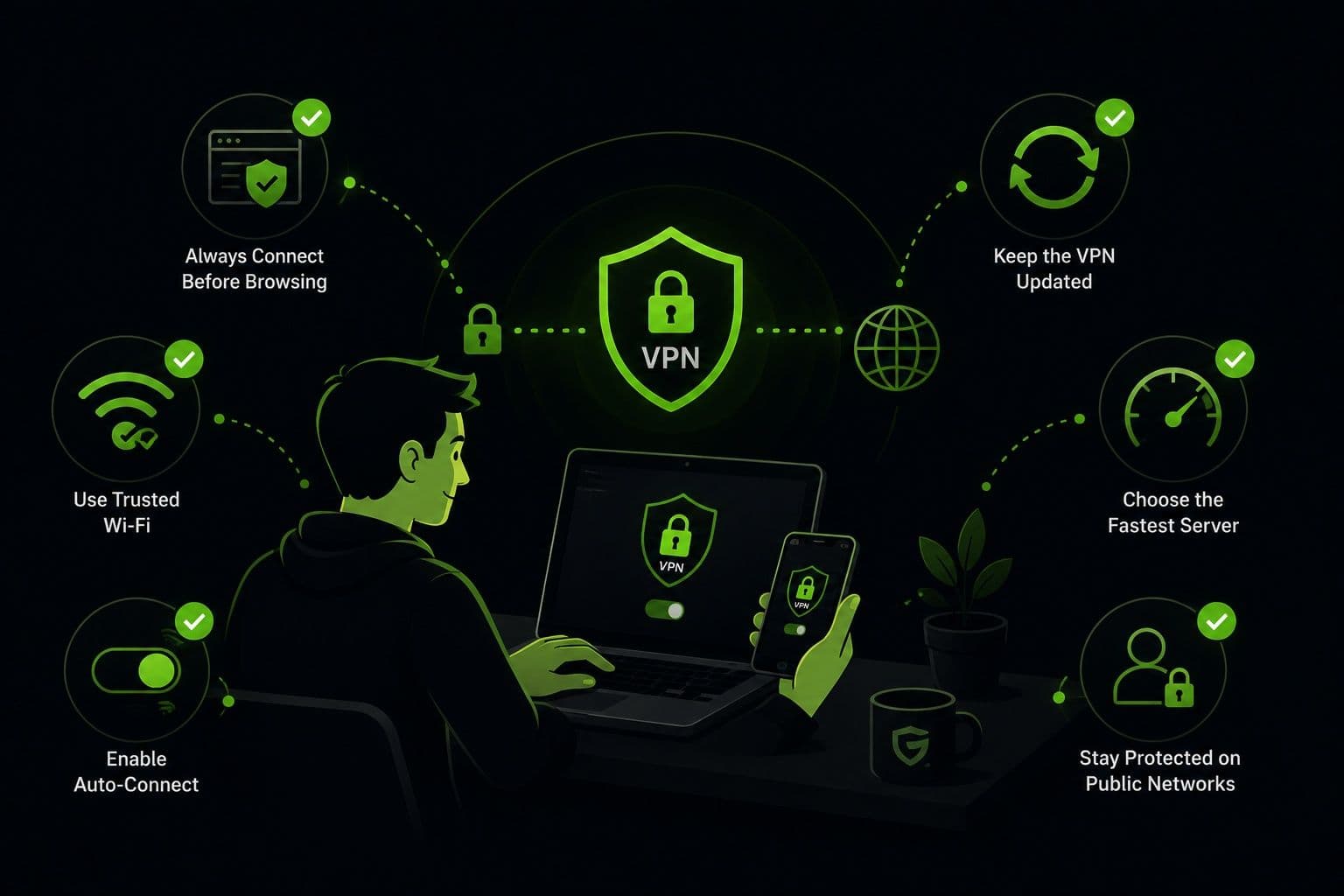
Using a VPN consistently is one of the easiest ways to improve your online privacy and security. Following a few simple best practices can help you maintain fast performance while ensuring your connection remains protected.
Performance Tips
Enable Auto-Connect so your VPN starts automatically whenever you connect to the internet. This eliminates the risk of browsing without protection.
For everyday activities, choose a nearby server whenever possible. Shorter distances generally provide faster speeds and lower latency. If you notice slower performance, switch to another nearby server, as network congestion can occasionally affect connection quality.
Security Tips
Keep your VPN application updated to benefit from the latest security patches, performance improvements, and new features.
It's also a good habit to leave your VPN enabled whenever you're connected to public Wi-Fi or handling sensitive activities such as online banking or shopping. For the strongest protection, combine your VPN with other cybersecurity practices, including strong passwords, multi-factor authentication, and regular software updates.
Privacy Tips
Before accessing sensitive websites, verify that your VPN connection is active. Most VPN apps clearly display your connection status and current server location.
If available, enable DNS leak protection and similar privacy features to help ensure your internet traffic remains protected. When using shared or public devices, remember to sign out of your online accounts after each session to further protect your personal information.
Smart Usage Tips
Choose your VPN server based on what you're doing online. Nearby servers are usually ideal for browsing, gaming, and video calls, while servers in other countries may be better suited for accessing region-specific content.
If your network changes — for example, when switching from Wi-Fi to mobile data — reconnect to your VPN to ensure your traffic remains encrypted. You can also enable features such as Kill Switch and Auto-Connect to maintain continuous protection if your connection is interrupted.
Frequently Asked Questions
While it's not mandatory, leaving your VPN connected provides the most consistent protection. Keeping it enabled helps secure your browsing, reduces online tracking, and protects your data whenever you connect to public or unfamiliar networks. Many users choose to leave their VPN running throughout the day for added convenience and peace of mind.
A VPN may slightly reduce your connection speed because your data is encrypted and routed through a VPN server. However, with a high-quality provider and a nearby server, the difference is often minimal. Modern protocols such as WireGuard® are designed to deliver strong security while maintaining excellent performance for streaming, gaming, and everyday browsing.
Yes. Most premium VPN providers allow multiple simultaneous connections under a single subscription. Guru VPN supports up to four devices at the same time, allowing you to protect your smartphone, laptop, tablet, and desktop computer without purchasing separate accounts.
Yes. In fact, public Wi-Fi is one of the most important situations in which you should use a VPN. Encryption helps protect your personal information from interception, making it much more difficult for attackers on the same network to access your sensitive data.
A VPN significantly improves your online privacy by encrypting your internet traffic and masking your IP address. However, it does not replace other security practices. You should still use strong passwords, enable multi-factor authentication, keep your devices updated, and remain cautious of phishing attempts or malicious websites.
No. Modern VPN applications are designed for users of all experience levels. Installation typically takes only a few minutes, and connecting usually requires nothing more than selecting a server and pressing the Connect button. Most settings work well with their default configuration, making VPN protection accessible even for complete beginners.
Stay Protected Every Time You Go Online
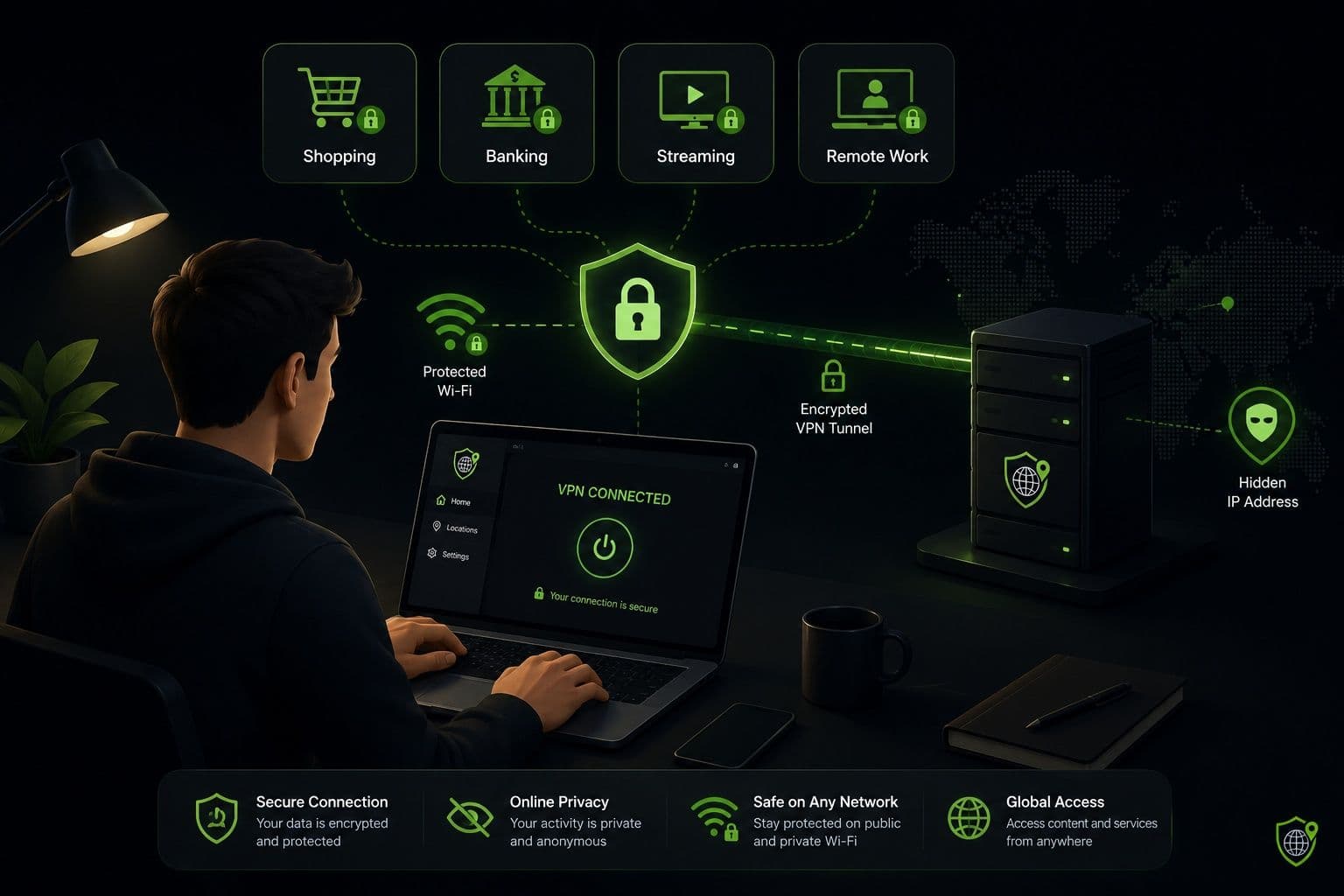
A VPN is one of the simplest and most effective tools for improving your online privacy. By encrypting your internet traffic, hiding your IP address, and securing your connection, it helps reduce the risks associated with public Wi-Fi, online tracking, and unauthorized access to your personal information.
As you've seen throughout this guide, getting started doesn't require technical expertise. Installing a VPN, choosing the right server, and connecting securely can be completed in just a few minutes. Once configured, a VPN becomes part of your everyday browsing experience, helping protect everything from online shopping and banking to remote work and streaming.
Guru VPN makes this process even easier with an intuitive interface, fast servers in more than 49 countries, strong encryption, and reliable performance across desktop and mobile devices. Whether you're at home, traveling, or working on the go, Guru VPN helps you stay connected with confidence.
If you haven't already, now is the perfect time to install the app and make secure browsing part of your daily routine.
Get the Most Out of Your VPN
Learning how to use a VPN is an investment in your online security. Whether you're protecting personal data, reducing online tracking, securing public Wi-Fi connections, or accessing online services while traveling, a VPN provides an additional layer of protection that has become increasingly important in today's digital world.
Getting started is straightforward: choose a trusted VPN provider, install the application, connect to the server that best fits your needs, and keep the app updated to benefit from the latest security improvements. Selecting nearby servers for everyday browsing, enabling features such as Auto-Connect or Kill Switch, and verifying your connection before accessing sensitive information will help you get the best possible experience.
Guru VPN brings these best practices together in a single, easy-to-use application. With powerful encryption, a strict no-logs policy, a global network of high-speed servers, and support for multiple devices, it delivers the privacy, performance, and reliability needed for everyday internet use.
The best online security habits are the ones you can maintain consistently. By making VPN protection part of your daily routine, you'll be better prepared to browse, work, shop, and stream with greater confidence — wherever the internet takes you.